Transfers and Connections
After starting a pull, follow its progress in the Transfers panel on the remote gallery or paired device page.
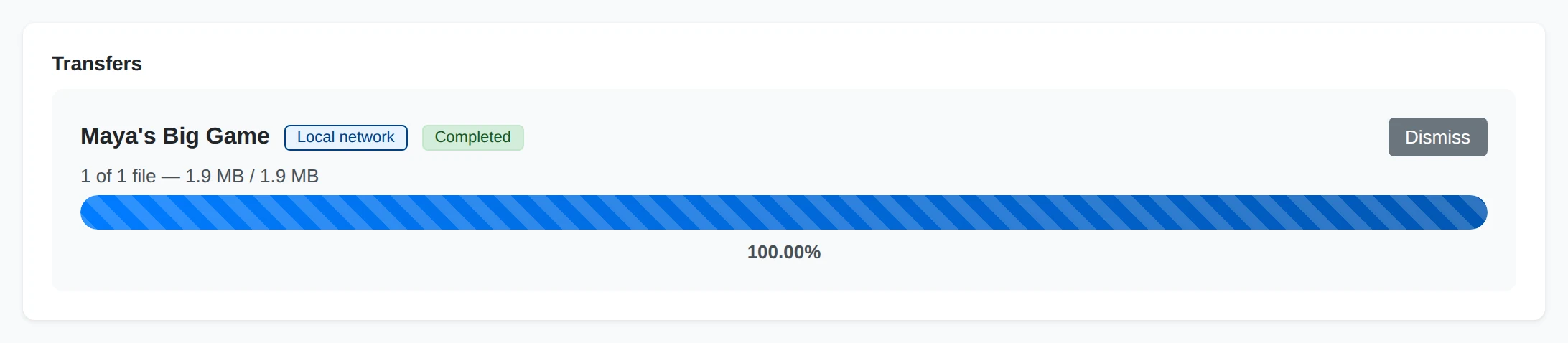
Transfer State
The badge shows whether the batch is collecting its file list, transferring, paused, completed, cancelled, or failed. The path badge identifies the connection.
Transfer Progress
Counts show files processed and bytes transferred. When present, the relay count shows how much data passed through the metered relay.
Transfer Actions
Cancel active work, or dismiss an inactive record. These actions keep copies already completed.
Connections and Relay Limits
Yaffo uses a local-network or direct connection when available. If a direct connection cannot be established, it can transfer through a relay. The transfer badge identifies Local network, Direct, or Via relay (metered).
A relayed batch pauses when it reaches the soft relay-data budget. This is a pause, rather than a failure. Put both devices on the same network when possible, or choose Continue anyway to allow the batch to keep using the metered relay. Choose Cancel if you do not want it to continue.
Manage Transfers
- Cancel stops an active transfer. Copies already completed are kept.
- Completed with errors means some files failed. Review the file errors and check that the sender and its files remain available.
- Dismiss removes an inactive transfer record from the panel. It does not delete the downloaded files.
If a Transfer Does Not Finish
Check that both Yaffo installations are running, that the sender's media folder is available, and that the receiver's download directory can be written to. For a paused relay batch, review the budget message before continuing. For a failed batch, correct the reported problem, then return to the shared gallery and start a new pull of the files you still need.