Ask Yaffo
Ask Yaffo is Yaffo's built-in assistant. Ask it how something works, why something isn't working, or to make a change to your library, such as "tag every photo from the Yellowstone trip". It answers from Yaffo's own documentation and, when you allow it, from the state of this computer. It never changes anything until you approve the change.
Ask Yaffo uses the model and API key you set up under Settings → AI Generation, the same as the page builder and theme designer. This feature is hidden if no key is configured.
Open Ask Yaffo
Click the round Ask Yaffo button in the bottom-right corner of any page. On a smaller screen, open Menu and choose Ask Yaffo instead. The assistant opens in a panel over the page you're on, so you can keep working while it answers.
- New conversation starts over with no earlier context.
- Open full page shows the assistant on its own page, with your Conversations listed beside it. Conversations are kept until you delete them.
- Drag the panel's edge to resize it; double-click the edge to reset it.
Ask About a Problem Where It Happens
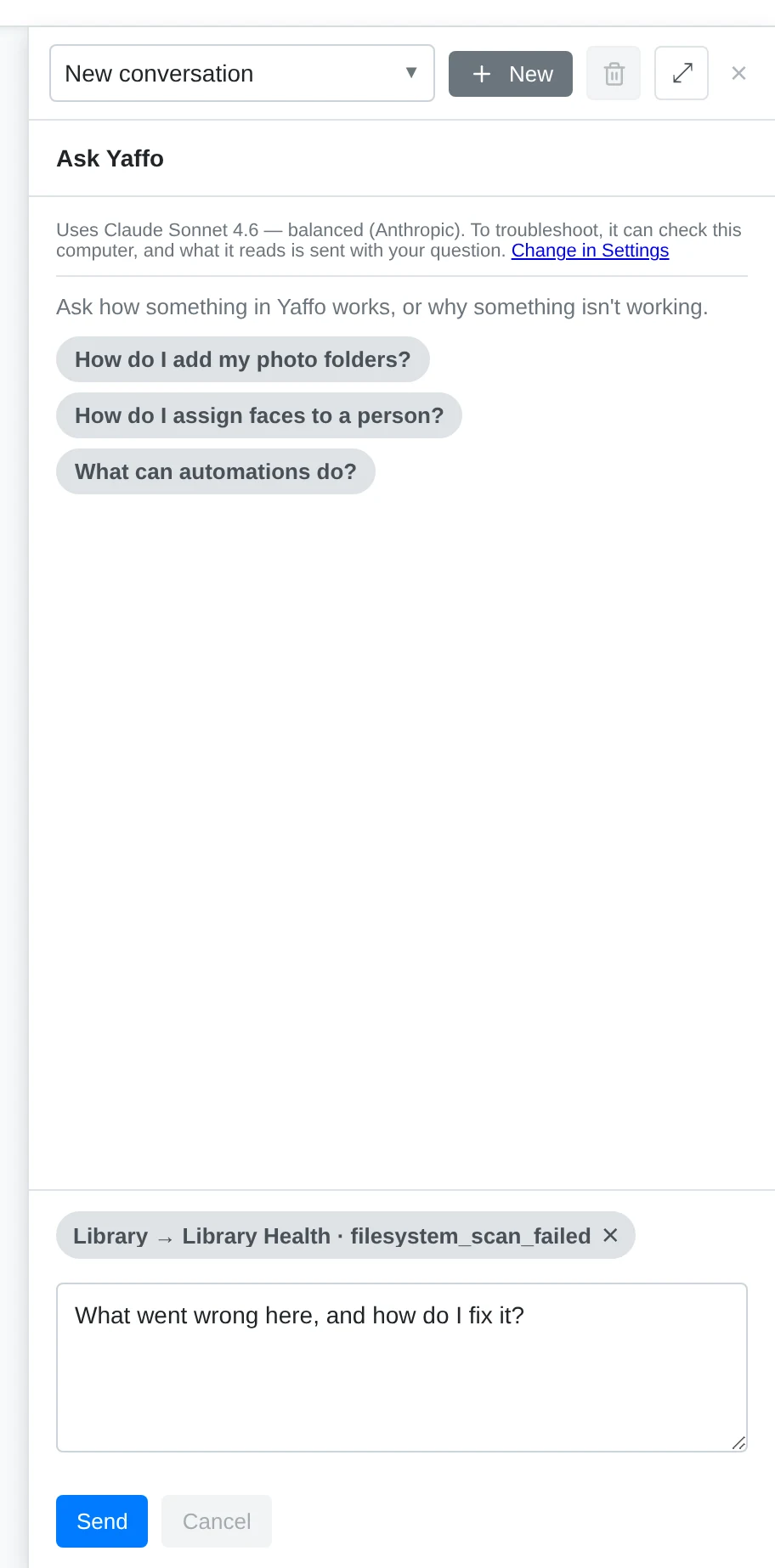
Many error messages, failed job cards, and run history rows with errors have their own Ask Yaffo button. It opens a new conversation with what went wrong attached, shown as a chip above your message, and suggests a first question: "What went wrong here, and how do I fix it?" Edit the question if you like, or remove the chip with its ✕, then send it.
When the attached context names a job or an automation, and the assistant may look at background jobs, Yaffo looks up that job or the automation's recent runs before the assistant starts. You'll see this as the first line of its activity.
Ask Questions
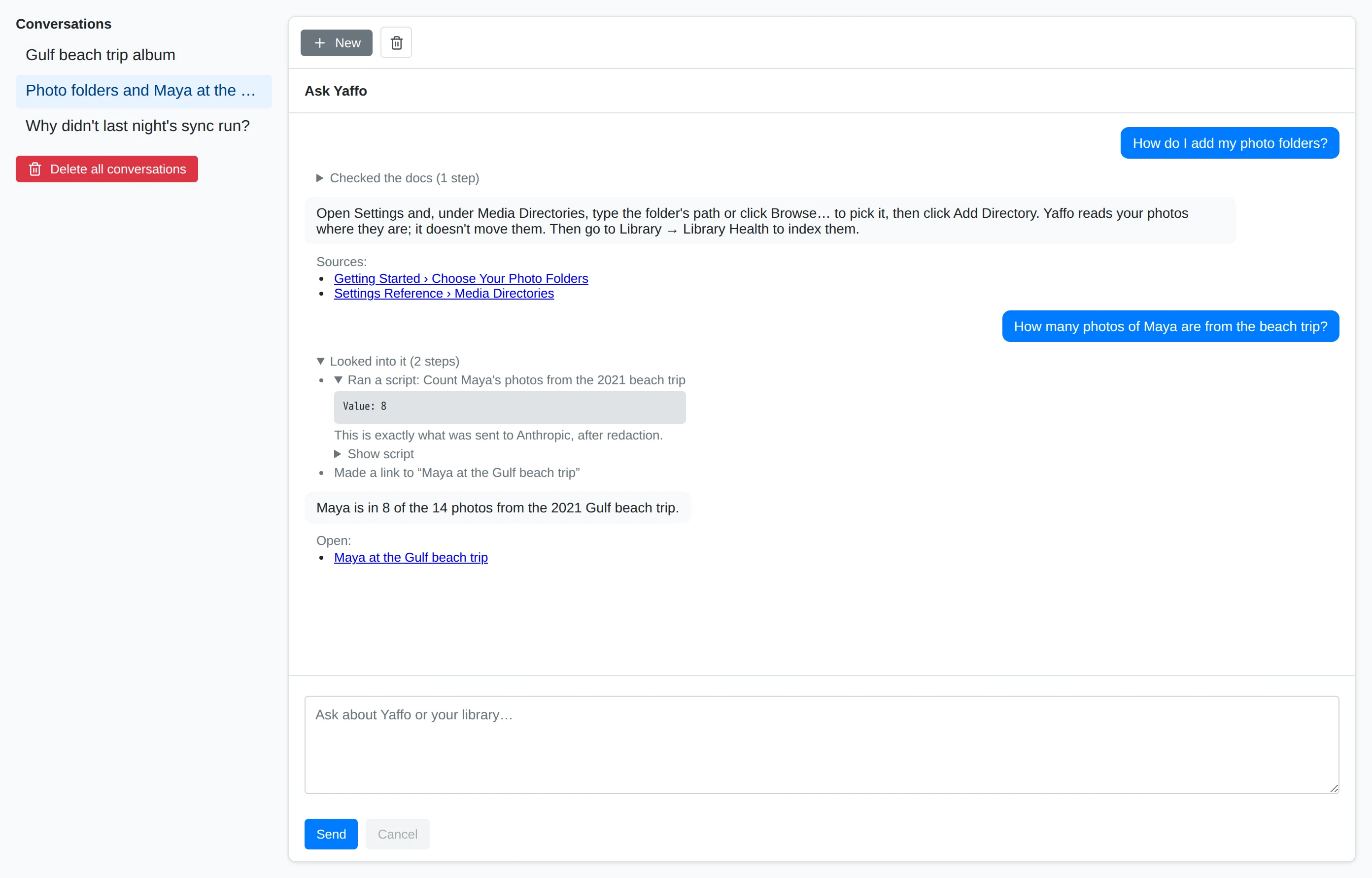
Ask the way you'd ask a person: "How do I add my photo folders?", "What do automations do?", "How many photos of Billy do I have from 2019?"
- How-to questions are answered from Yaffo's user guide. The pages it used are listed under the answer as Sources.
- Questions about your library are answered by looking it up. The assistant writes a short script that reads your library and shows it as an activity line, such as "Ran a script: Count photos of Billy by year". Click Show script to see exactly what ran. Scripts can only read; they can't change anything.
- Links. When an answer points somewhere in the app, the assistant adds links under it (Open:), such as a gallery already filtered to the photos it found. For a file or folder on your computer it adds a button: Open on this computer or Show in its folder. Nothing opens until you click.
While it's answering, you can stop it. What it already wrote stays in the conversation.
Troubleshoot Problems
Describe what's wrong: "My external drive isn't showing", "Faces are stuck after assigning", "Why did last night's sync fail?" The assistant checks before it answers. It can:
- run Yaffo's health checks;
- read recent errors from Yaffo's logs;
- check your media folders and whether a drive responds;
- look at background jobs, the task host, and automation runs and settings;
- check device sharing and recent transfers;
- look up everything about one photo.
Each check appears as an activity line under the answer. Expand a line to see exactly what was sent to the AI provider.
The Troubleshooting pages describe common problems and what the assistant looks for.
Make Changes With Approval
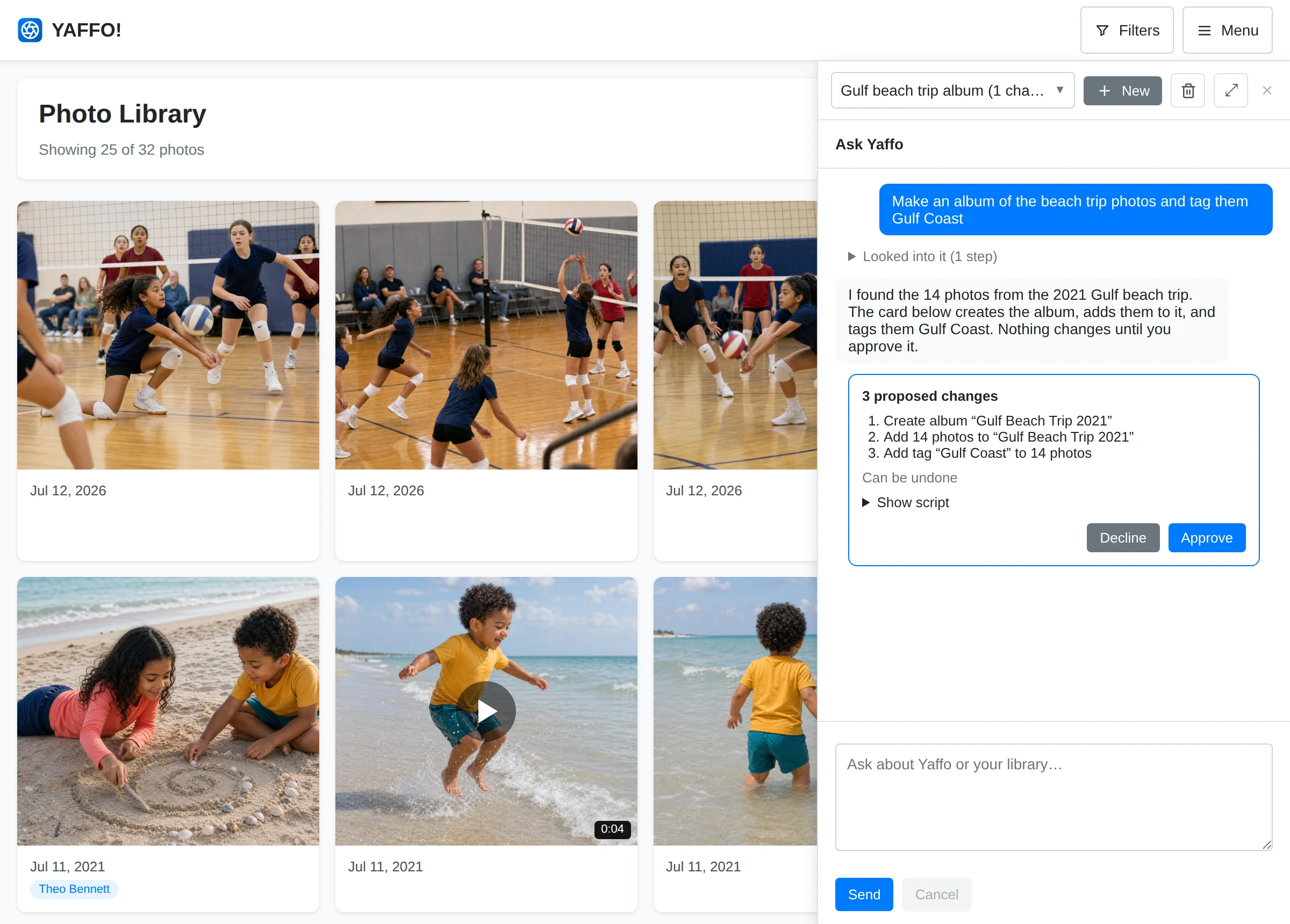
Ask for a change in plain words. The assistant finds the items, then proposes the change as a card under its reply. The card is written by Yaffo, not by the AI, and shows:
- each step, with the number of photos, faces, or other items it affects;
- whether it can be undone.
Click Approve to apply it or Decline to drop it. Nothing changes before you approve.
- Large changes. Above a set number of items (500 by default), check "Yes, change all N items" before Approve is available.
- Changes to files on disk (renaming, moving, or moving photos to the system trash) are off until you turn them on in Settings. When they're on, type the number of items to confirm.
- Expiry. A card that isn't approved within 30 minutes, or whose items changed in the meantime, expires. Ask again to get a fresh one.
Approving applies exactly the items on the card, even if your library changed after the card appeared.
Undo a Change
After a change runs, most cards keep an Undo button. Undo restores what the change replaced. Items that changed again since, by you or an automation, are left as they are. A card marked Can't be undone has no Undo: for example moving photos to the system trash (restore them from the trash instead), deleting an album or a person, or cancelling a job.
What It Can Change
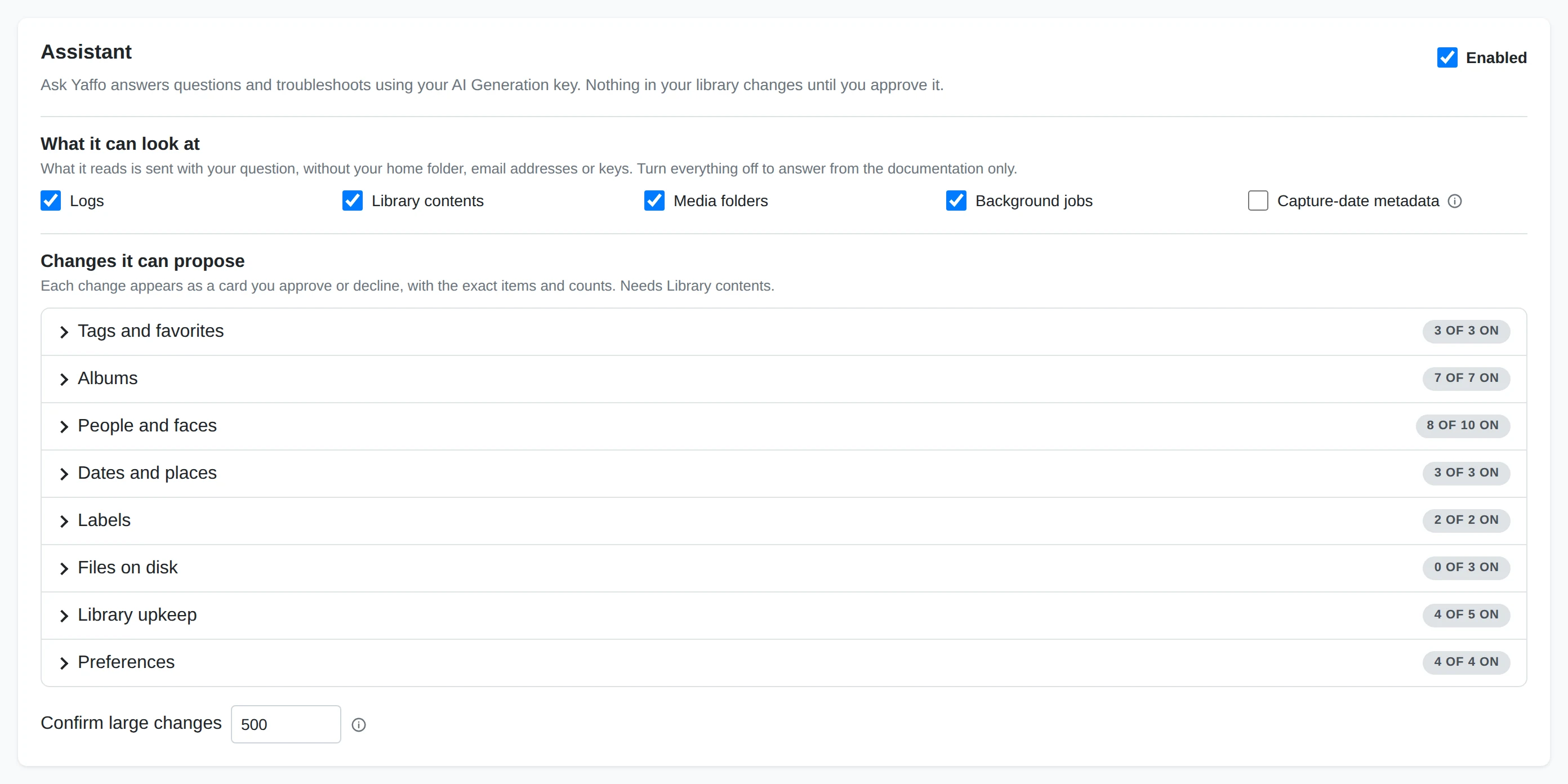
What the assistant may propose is set in Settings → Assistant. By default it can:
- Tags and favorites — add or remove tags, mark favorites.
- Albums — create, rename, and delete albums, add or remove photos, choose the cover, and put photos in order.
- People and faces — create and rename people, assign or unassign faces, ignore faces you don't want to name, set a birthdate, and repair faces stuck in the wrong state. It can also find unassigned faces that look like someone, or group unassigned faces that look alike, so you can name them.
- Dates and places — change capture dates, location names, and GPS coordinates. It can suggest location names from photos already named nearby; it never looks places up online.
- Labels — add labels to the vocabulary, or remove them. Photos get a new label when they're classified again: click Re-classify all photos in Settings, or let the assistant start it when Run automation is on.
- Library upkeep — re-index items, cancel a background job, and turn automations on or off.
- Preferences — change the theme, the language, the distance unit, and which filters the sidebar shows.
Off by default, until you turn them on: renaming or moving files, moving photos to the system trash, merging or deleting people, and running an automation.
Duplicates. The assistant can read the results of a duplicate scan, suggest which copy in each group to keep, and propose moving the others to the system trash or into a folder for review. Start the scan from Library → Remove Duplicates yourself, or let the assistant start it when Run automation is on; moving files needs those file switches on too. See Finding Duplicates.
Recurring changes. For rules that should keep applying, such as "tag every new photo from this camera", the assistant points you to Automations instead.
What Is Sent to the AI Provider
- Your messages, and the results of the checks and scripts the assistant runs: log lines, file and folder names, people's names, counts, and settings.
- Before sending, Yaffo replaces your home folder with
~, shows media folders as labels instead of full paths, rounds GPS coordinates, and hides email addresses and anything that looks like a key. - Never sent: your photos and videos themselves, the database, or your API keys. Reading capture dates from files is a separate setting, off by default.
The assistant connects to nothing except your AI provider. Conversations and the record of what was sent stay on this computer until you delete them, one conversation at a time, or all at once with Delete all conversations on the full Ask Yaffo page.
To limit what it can check, turn groups off in Settings → Assistant. With every group off, it answers from the documentation only, and nothing from this computer is sent.
What It Won't Do
- Look at the content of your photos.
- Change your media folders, thumbnail folder, API keys, or device sharing. It can explain sharing and check its status, but pairing and sharing stay with you.
- Edit automation, custom page, or theme code. Use the builders for those.
- Delete files permanently. Photos only ever go to the system trash.