Faces & People
Yaffo detects faces during indexing and lets you assign those faces to people. After that, you can browse a person's faces or filter the library by people.
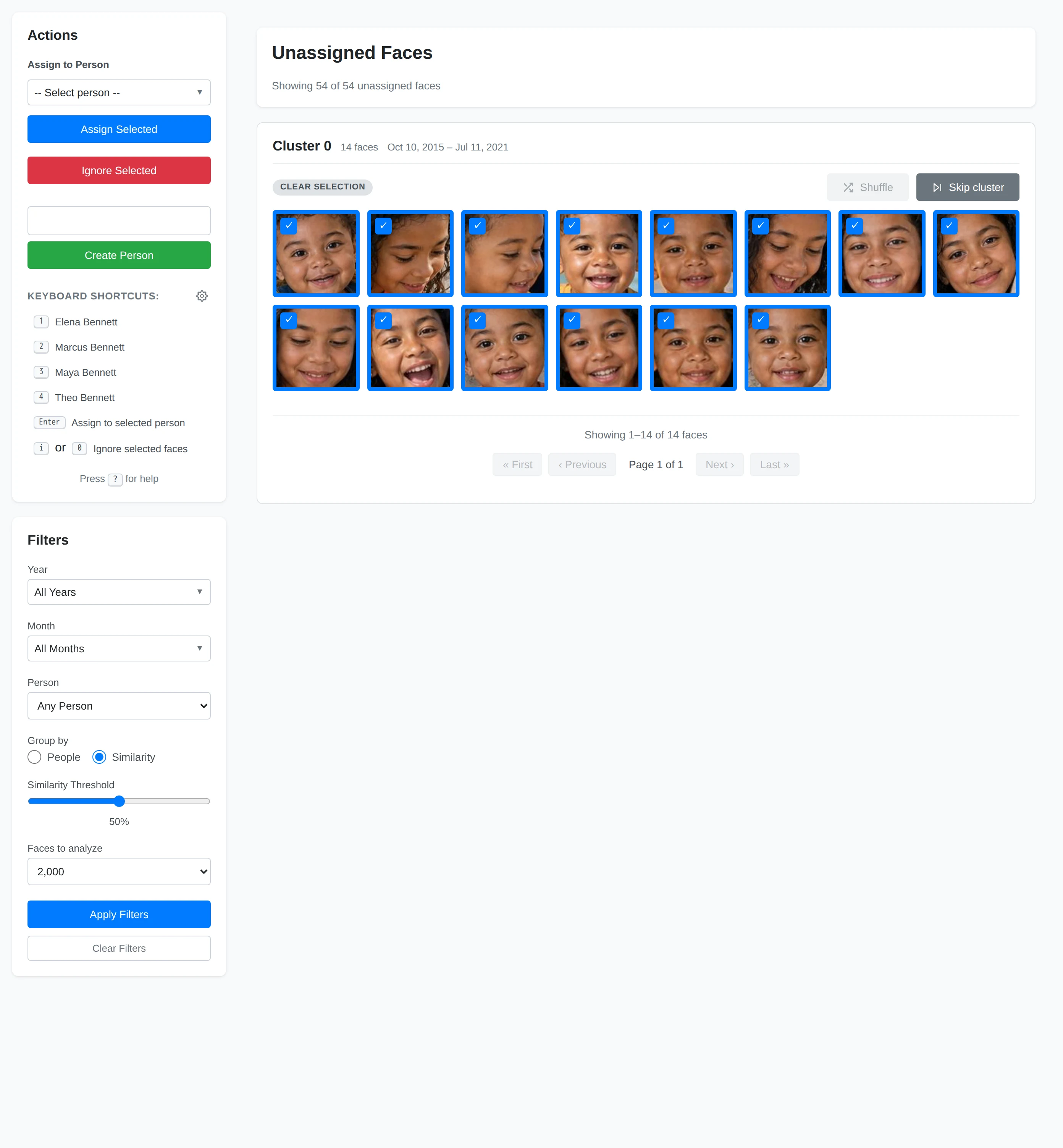
This page explains the concepts. For the hands-on, step-by-step workflow of clearing the unassigned pile, see Assigning Faces.
Understand the Face Review Page
The Faces page shows unassigned faces. The goal is to empty that pile over time.
Yaffo groups faces in two ways:
- Group by People: shows faces that look like people already in your library.
- Group by Similarity: clusters visually similar unassigned faces together.
The Similarity Threshold controls how strict grouping should be. Higher values create tighter, cleaner groups. Lower values create larger, looser groups.
A practical first pass is:
- Start with Group by Similarity at a high threshold.
- Assign the biggest obvious clusters first.
- Lower the threshold as the remaining groups get smaller.
- Switch to Group by People after you have several known people.
- Ignore low-quality faces that are blurry, partial, or not useful.
Refreshing between passes can help because Yaffo reclusters the remaining unassigned faces. See Assigning Faces for how to do all of this in practice.
Create People
Open People to create and manage people.
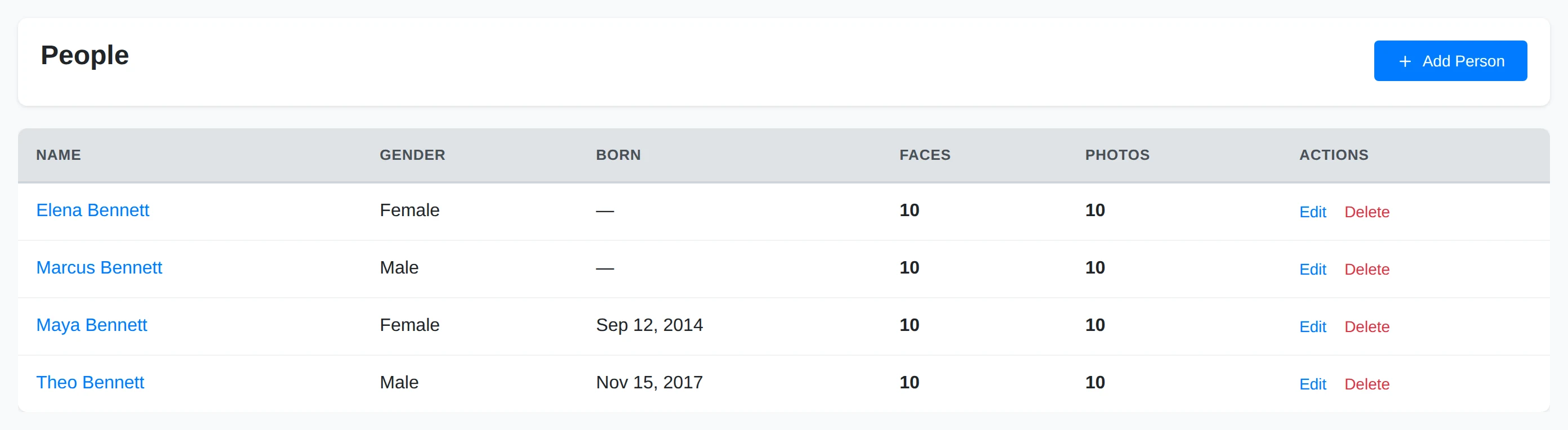
Each person can have:
- a name;
- an optional gender;
- an optional birthdate.
A birthdate helps Yaffo compare a person's faces from similar life stages. Gender is used by the gallery's gender filter. Neither field is required.
You can also create a person on the fly while assigning faces, using the Create Person box in the Faces sidebar.
Review a Person's Faces
Click a person in the People table to open that person's face page. From there, you can:
- see all faces assigned to the person;
- filter by similarity;
- select incorrect faces;
- click Remove Selected to remove wrong assignments.
Removing a face from a person does not delete the original photo. It only removes that face assignment.
Automatic Assignment
The built-in Auto-assign faces automation runs when a photo is indexed. It compares each detected face with your known people and assigns a face when one person clears the configured match threshold.
By default, a face that strongly matches more than one person stays unassigned for you to review. You can instead enable Assign when multiple people match to choose the highest-scoring match. A higher threshold makes fewer, more confident assignments.
Open Library → Automations → Auto-assign faces to enable or disable the automation and change those settings. Review automatic results periodically, especially while each person has only a few examples.