Indexing & Library Management
Indexing is how Yaffo learns what photos and videos are in your library. Yaffo does not move your originals into a special folder. Instead, you choose media folders, and Yaffo builds a local index from those files.
Add Media Folders
Open Settings and add one or more media directories. These are the folders Yaffo scans for photos and videos.
Use folders that contain your actual library, such as:
- a Pictures folder;
- a camera import folder;
- an external drive folder;
- a folder synced from another device.
Yaffo stores its own database, thumbnails, logs, and temporary files separately from these media folders. Removing a folder from Yaffo's settings removes it from future scans; it does not delete the folder from disk.
Scan the Library
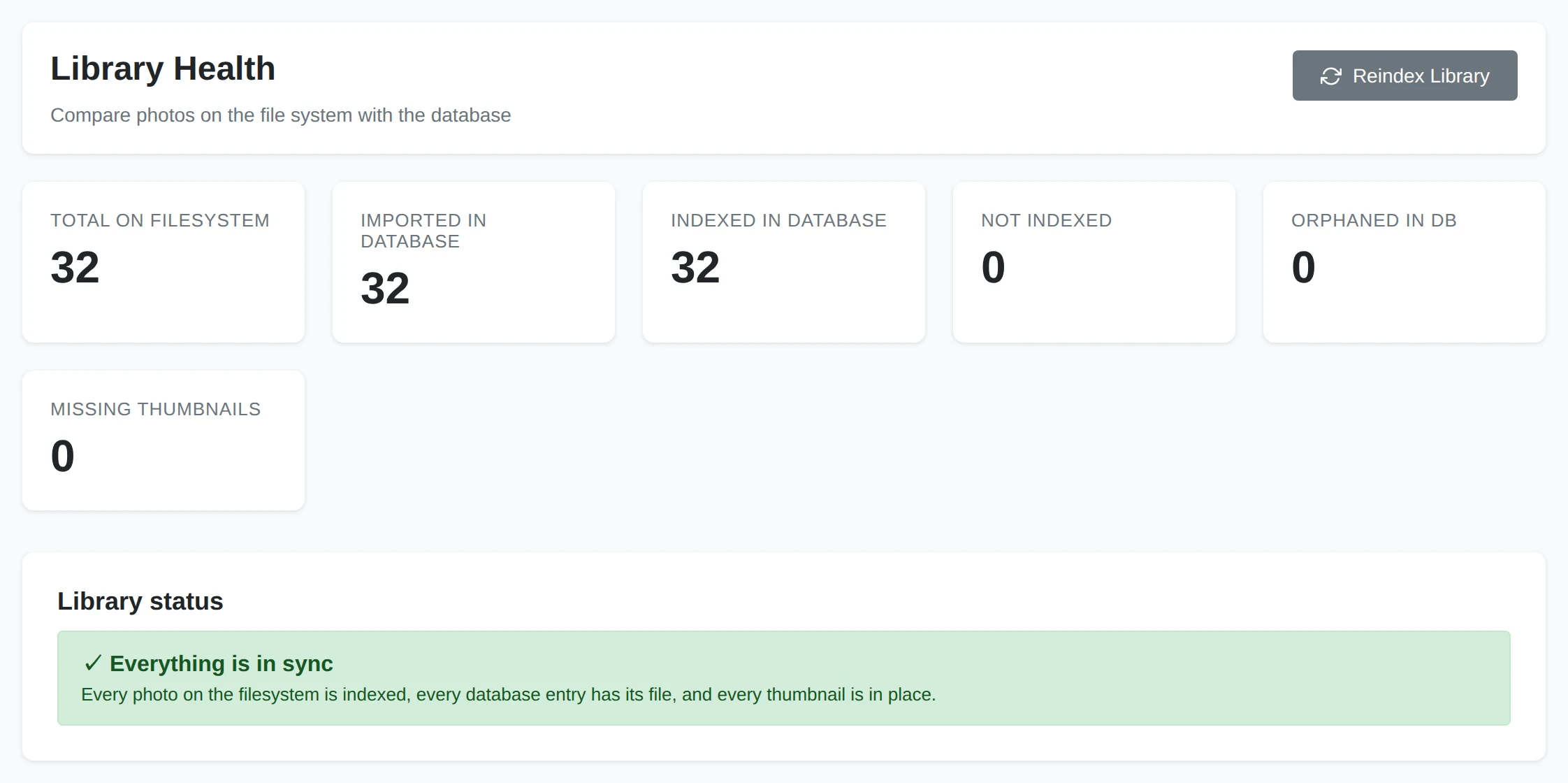
Go to Library → Library Health. Yaffo compares the configured media folders with the local database.
The page shows several counts:
- Total on Filesystem: media files found in your configured folders.
- Imported in Database: files already known to Yaffo.
- Indexed in Database: files already processed for browsing and metadata.
- Not Indexed: files found on disk but not yet indexed.
- Orphaned in DB: database records whose files are no longer present.
- Missing Thumbnails: face crops and video posters Yaffo made that are gone from the thumbnail folder.
Scanning is a read-only comparison step. Under Library status, the page lists what needs attention, one card per problem with its own fix, or says Everything is in sync when nothing does. Select Show files on a card to see the files it's about.
Fix What the Scan Finds
Each card fixes only its own problem:
- Photos aren't indexed: files in your media folders that Yaffo doesn't know yet. Select Index them to import and process them in the background.
- Library entries have no file: entries whose file was deleted, or whose media folder was removed from Settings. Select Remove them to drop those entries. Their faces go with them, including any person assignments.
- Thumbnails are missing: face crops or video posters that show as broken images. Select Regenerate thumbnails to write them again from your photos and videos. Faces keep their people and ignored status; nothing is detected again.
- Files couldn't be indexed: see Files That Couldn't Be Indexed.
If a media folder holds no files at all, a warning above the cards says so. That usually means its drive isn't connected, and its photos are listed as having no file. Reconnect the drive before you select Remove them. A similar warning appears when the thumbnail folder isn't available; its count then shows a dash instead of a number.
During indexing, Yaffo may:
- create thumbnails;
- read dates, camera metadata, and GPS metadata;
- detect faces;
- run automatic labels;
- prepare video posters or metadata;
- update searchable fields used by filters.
Large libraries can take time. You can keep using the app while background jobs run.
Watch Background Jobs
The Library Health page shows the import, index, or thumbnail run in progress as a job card, with its progress, any error count, and Cancel when cancellation is available. After you cancel, the run shows Stopping until it finishes the item it's working on, then Cancelled. Finished runs move to the page's Run history, each with a status chip: Completed, Completed with errors when some files failed, Cancelled, or Failed. A thumbnail run's row also says how many thumbnails it regenerated. A run that is still in progress has Cancel in the run history too, and a run's technical error, when it has one, is under Details.
A failed run, or one with errors, has an Ask Yaffo button that opens the assistant with that run attached, so it can look up what went wrong.
If you close the browser tab, the app and its background worker can continue running as long as Yaffo itself is still running. Use the Yaffo tray/menu icon to reopen the app or quit it.
Re-Index After Changes
Yaffo has two automatic ways to notice library changes while the app is running:
- A watcher process monitors configured media directories and reacts when files are added, modified, moved, or removed.
- The built-in File sync automation runs at the start of every hour. It finds new paths and orphaned database records, like the scan on Library Health.
These automatic checks are useful for normal day-to-day changes, such as copying new photos into a watched folder.
You can still open Library Health whenever you want an immediate check. It's useful when you:
- add new photos or videos to a configured folder;
- remove files from a configured folder;
- add another media directory;
- move a library folder;
- want Yaffo to clean up orphaned database records;
- see broken face or poster images.
Use Reindex Library when files were modified in place while Yaffo was not running, or when an indexing change requires Yaffo to rebuild derived data for items it already knows. Reindexing rereads every indexed file and rebuilds its metadata, thumbnails, labels, and detected faces. Because faces are detected again, all existing face-to-person assignments are removed. Yaffo asks you to confirm before starting the job. If only thumbnails are broken, use Regenerate thumbnails instead: it keeps every assignment.
Some operations, such as changing the automatic label vocabulary, have their own reprocessing controls. Use Library Health for file-system changes or when you do not want to wait for the watcher or hourly sync.
Files That Couldn't Be Indexed
Occasionally a file can't be indexed, for example because it's damaged, cut off partway through, or in a format Yaffo can't decode. The file still appears in your library and you can open it, but it has no date, location, faces, or labels, because those are read during indexing. Undated files sort with other undated items rather than near when they were taken.
When this happens:
- Library Health shows a card listing the files that couldn't be indexed, with the reason for each under Show files. Select a file name to open it.
- The photo's details panel explains why, with the technical error under Details.
- File sync leaves these files alone, so they aren't retried every hour. A file is tried again automatically only when it changes on disk, for example after you repair or replace it.
To try again yourself, select Retry all on Library Health, or Reindex in the photo's details panel. Retrying is also worthwhile after updating Yaffo, since a newer version may handle the file.
If a file can't be reached at all, for example because its drive was disconnected during indexing, it isn't marked as failed. The next sync tries it again.
Supported Media
Yaffo indexes these file extensions:
- Photos:
.jpg,.jpeg,.png, and.heic. - Videos:
.mp4,.mov,.m4v,.avi,.mkv,.wmv, and.flv.
MP4, MOV, and M4V videos can play inline when their codec is supported by the browser. Yaffo still indexes the other video containers for metadata, posters, and faces, but opens them in an external application instead of playing them in the detail view.
If a file does not appear after indexing, check that:
- the folder is configured in Settings;
- the file is inside that folder;
- the file extension is a supported media type;
- Yaffo has permission to read the folder;
- indexing has finished.