Pairing Devices
Pairing establishes trust between two Yaffo installations. It does not grant access to any media by itself. Both installations must be running and reachable.
Pair Two Devices
Open Sharing on both installations. In this example, Photo library is the installation with the photos and Family laptop receives them. The names are labels you can change after pairing.
Generate a Code on the First Device
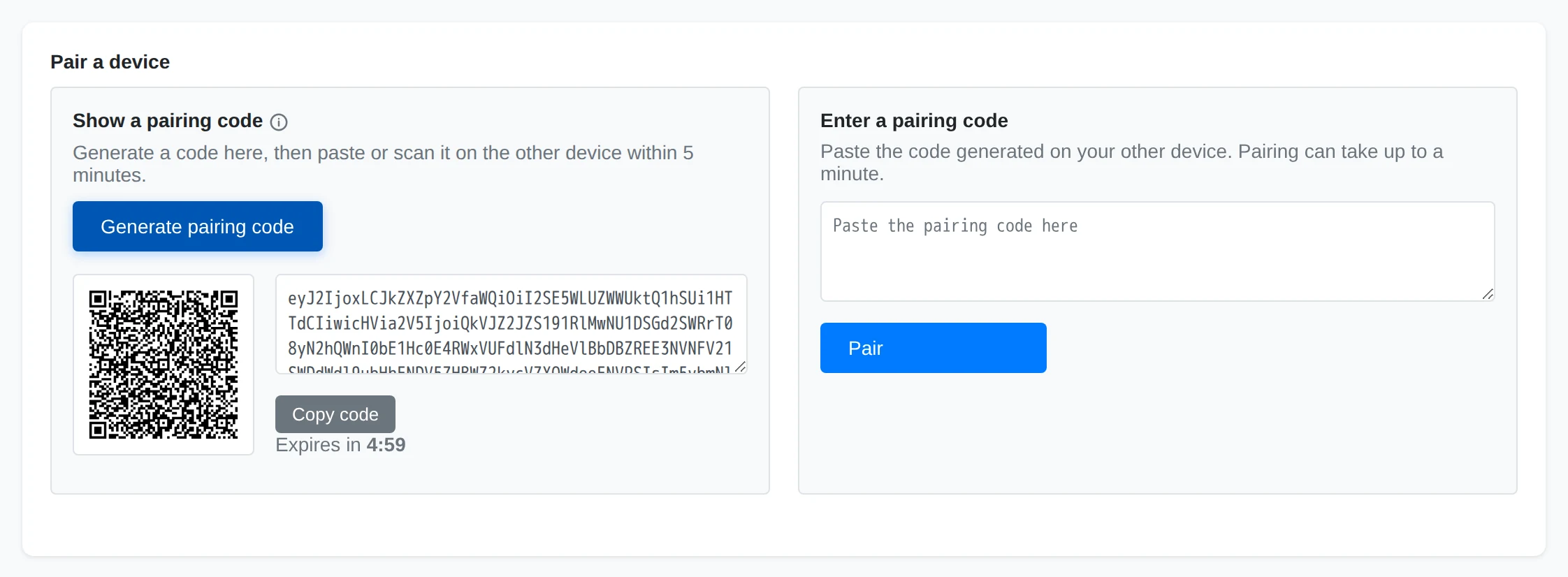
Under Show a pairing code, choose Generate pairing code. Copy the code, or scan its QR code from the other device. Keep both installations online. The code expires after five minutes and can be used once.
Enter It on the Other Device
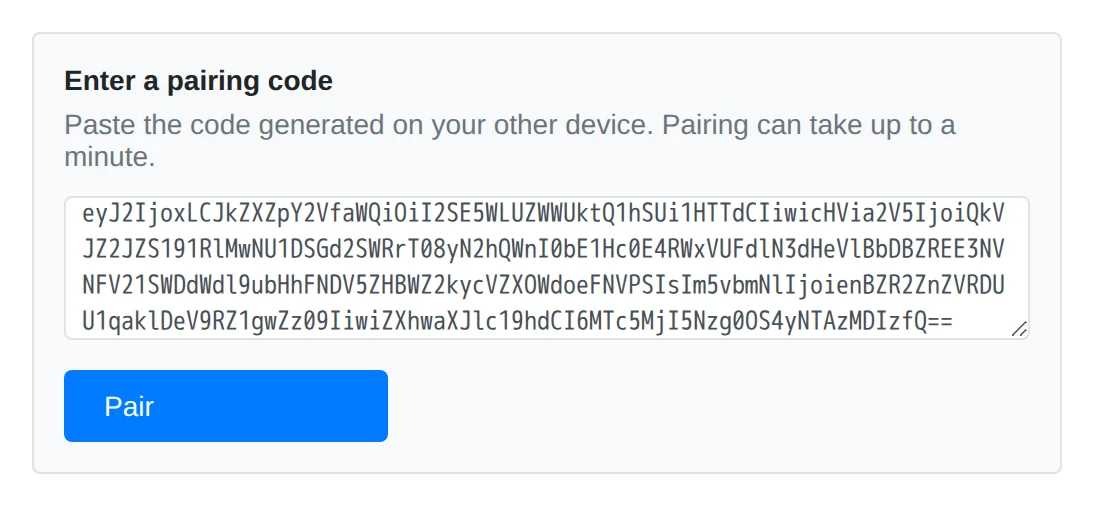
On the other installation, paste the code under Enter a pairing code and choose Pair. Pairing can take up to a minute. If it fails, check that the first device is still running and generate a fresh code if the old one expired.
Check the Paired Device
Choose the new device in the sidebar. Confirm its device ID against the other installation and give it a useful Device Name with Rename. The label is local to this installation.
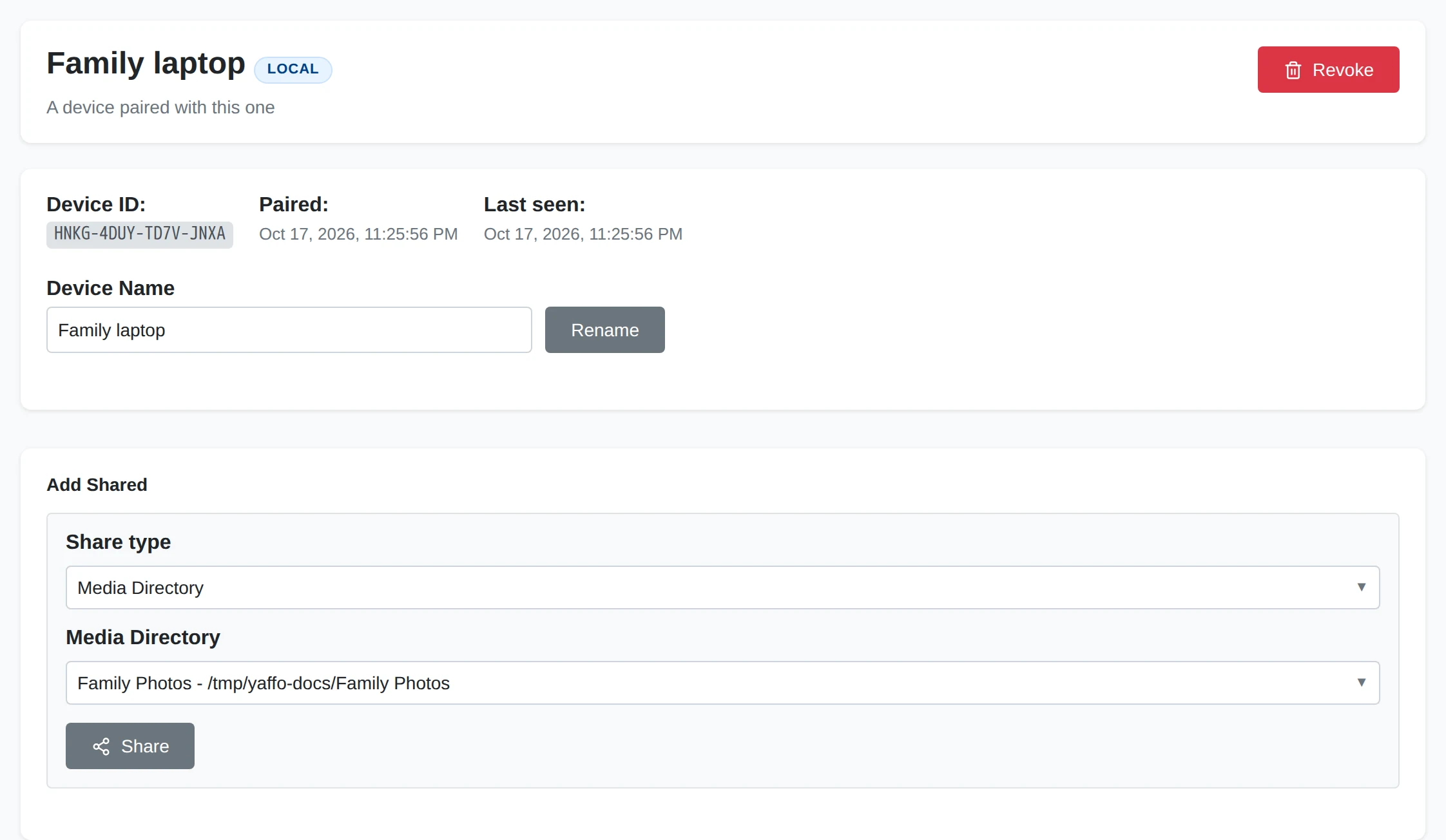
Local means the device has been discovered on your local network. Online indicates hub presence. Offline indicates that the hub reports it absent; Unknown means presence could not be determined. A disconnected hub does not prevent local-network pairing and transfers.
Renaming a device changes its label, not its identity or permissions.
Revoke or Forget a Device
Choose the device and use Revoke, then confirm. It loses access to everything this installation shared with it. Previously downloaded files remain on it. Pair again if you want to restore trust; review the sharing grants afterwards.
After revocation, Delete removes the device entry from this installation. Confirm the action to forget it. To share with that device again later, pair it again and choose the scopes to grant.
Next, choose what to share.