Creating a Photo Service
A service is a reusable connection to a photo service: Yaffo knows how to talk to it, and every sync that uses it shares that knowledge. Build one when the service you want is missing from Import from… or Send to….
A service and a sync are different things. The service says how photos travel — which endpoints, which sign-in, which options. A sync says which photos travel and when it runs, and it records its own history. You publish the service once, then create as many syncs from it as you like.
This walkthrough sends selected photos to Flickr sets as its example. You can describe another service, or an import instead — the steps are the same, only the direction you ask for differs. Flickr is not the point: the builder writes code either way, and the tabs you inspect are the same five.
Before You Start
Save a model and its provider key in Settings → AI Generation. The builder writes the connection from your description, and it uses that model to do it.
Without a key the chat stores nothing: the message is refused, and a notification reads No API key configured. Add your Anthropic API key in Settings → AI Generation. (the provider named is whichever model is active). Nothing is lost — add the key and send the same message again.
Build the Service
Choose Add a New Service
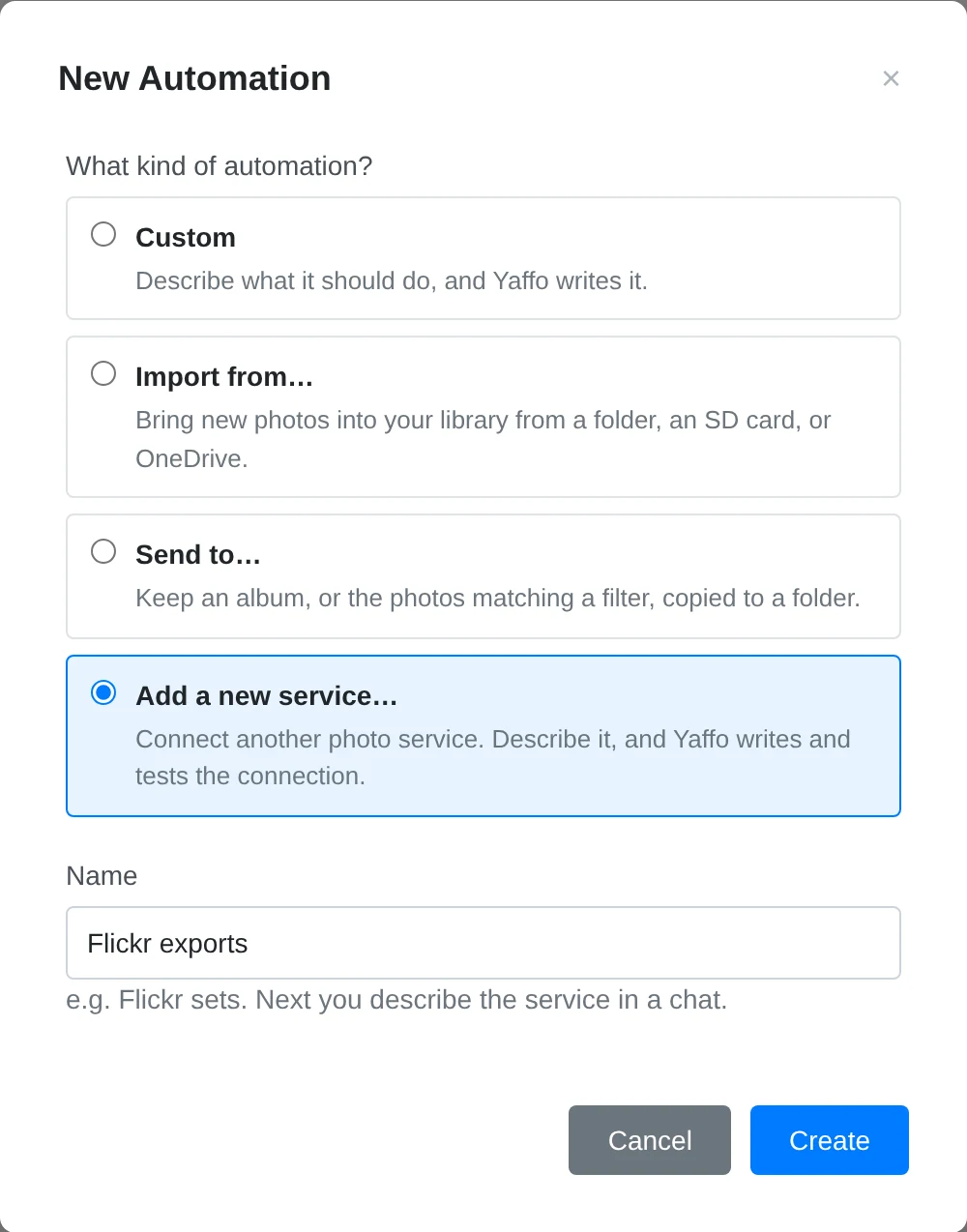
Open Library → Automations and click New automation. The dialog asks what kind of automation you want; choose Add a new service…. It is the choice that builds a reusable connection rather than a sync. Give it the name you will recognise later, such as Flickr exports, and click Create.
Describe the Connection
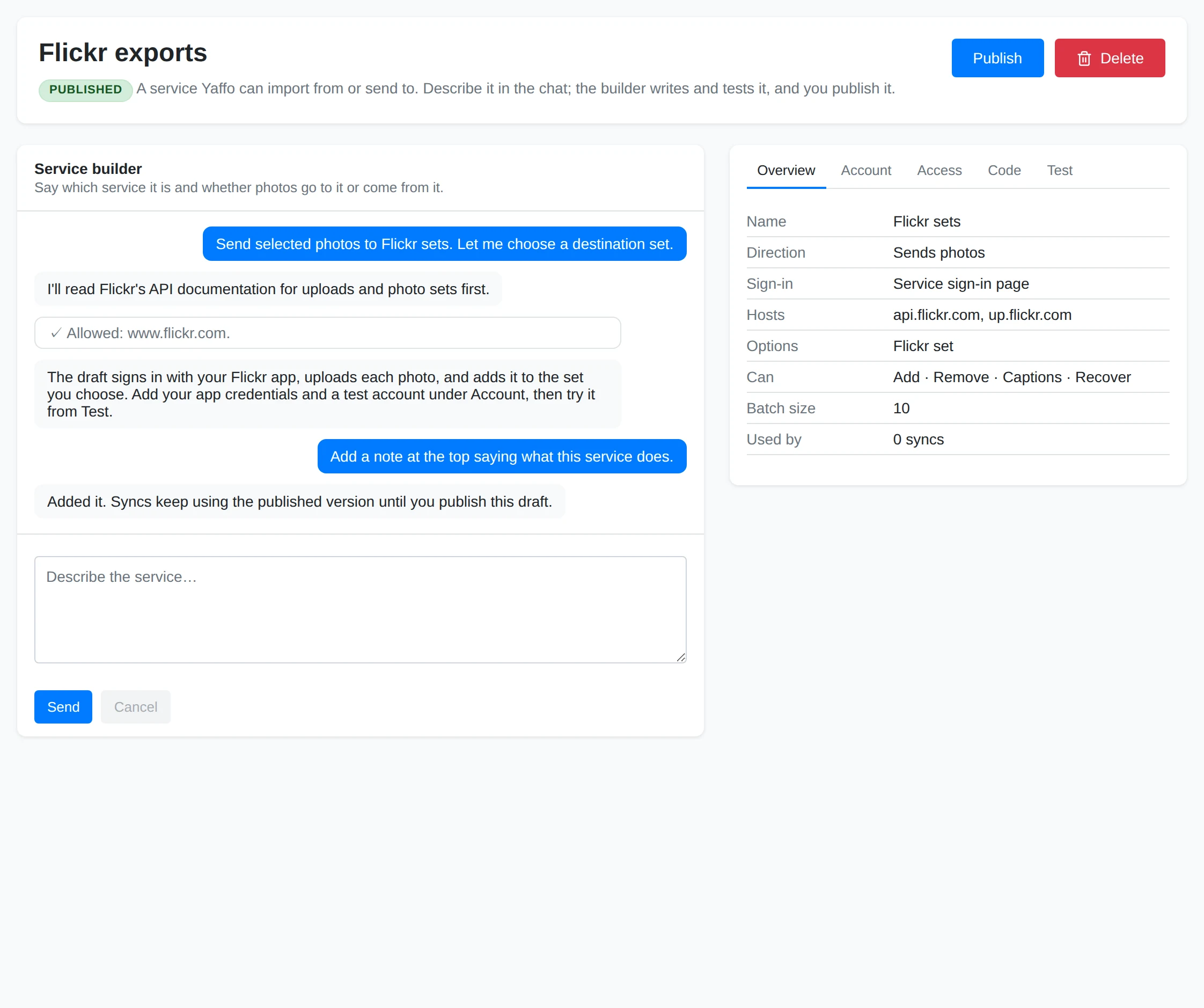
The builder opens on a draft. Say which service it is and which way photos travel — for this example: Send selected photos to Flickr sets. Let me choose a destination set. Include the options you need, such as choosing a set or keeping captions.
The page has two halves. The left is the conversation: every message, the builder's replies, and any request it needs you to answer, drawn as a card. The right is five tabs over the draft. The header says Draft until you publish, so nothing here is used by a sync yet; a service you already published says Published even while a newer draft is open.
Check the Overview
The Overview tab summarizes the draft: Name, Direction (Imports photos or Sends photos), Sign-in, Hosts, the Options it offers, and Used by, the number of syncs on the service. A send service also lists what it Can do — Add, Remove, Captions, Recover — and its Batch size.
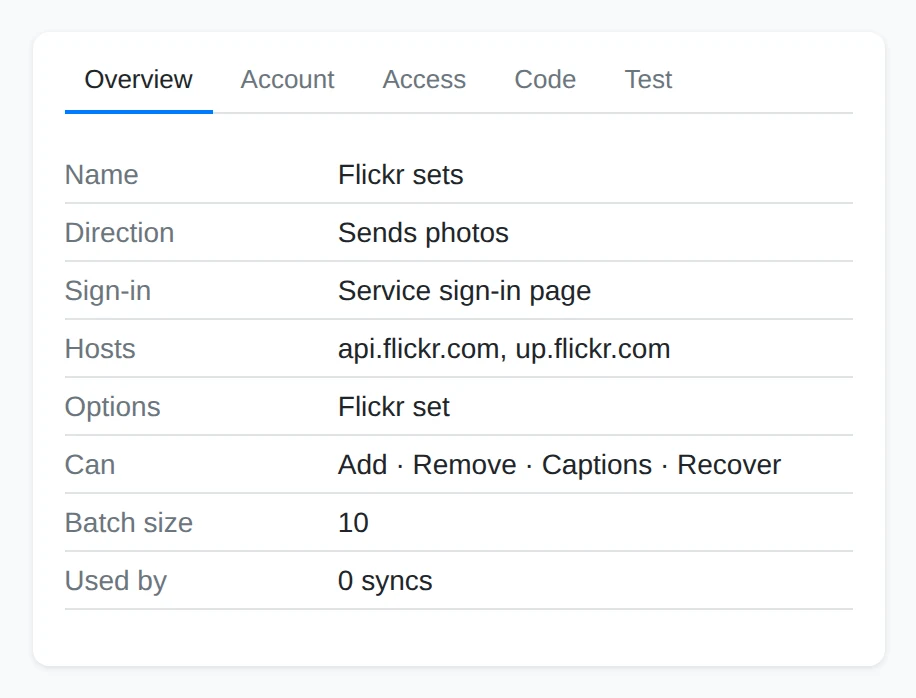
Read the direction first. If it is wrong, say so in the chat rather than building on it: everything after this — endpoints, test, publish — assumes it.
Add App Credentials and a Test Account
The Account tab appears once the builder knows how the service signs in, and holds the two things a connection needs.
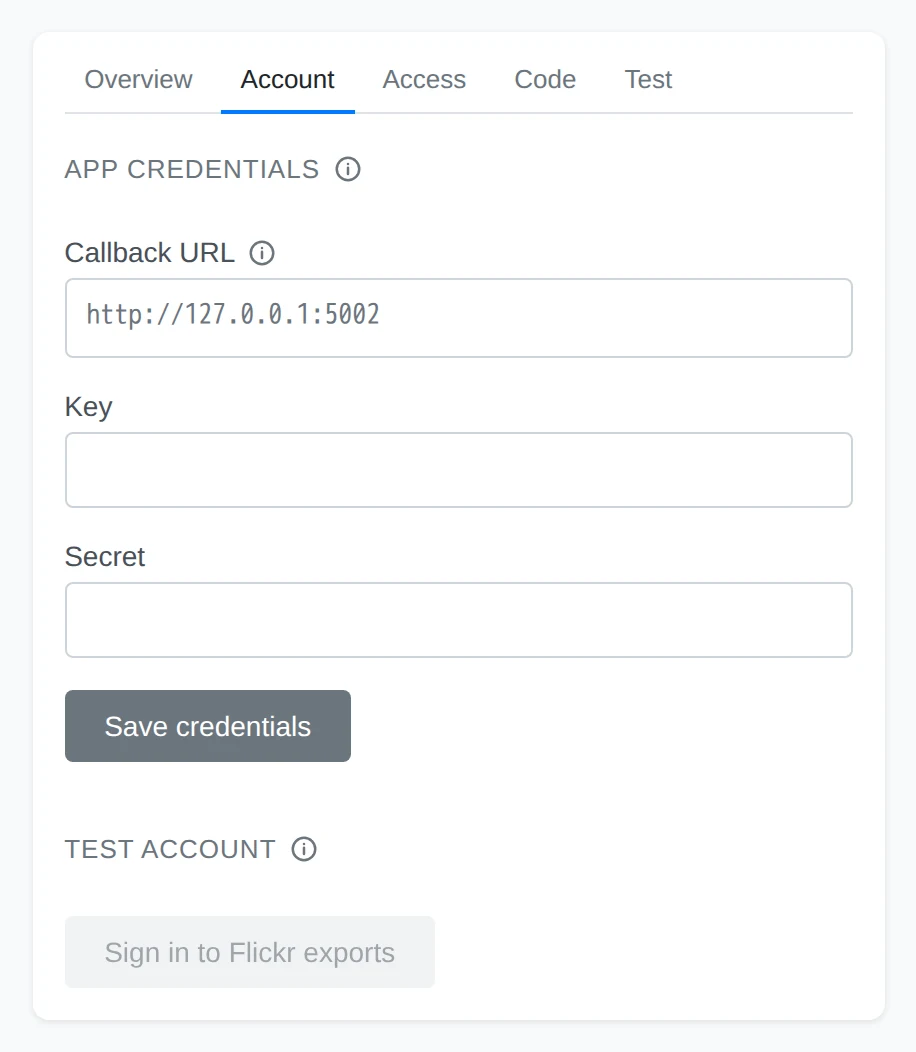
App credentials appears when the service wants to know which application is asking. Register an app with the photo service, and paste the return address the tab shows — here Callback URL — into the app's own configuration; it is the address the service sends the browser back to after sign-in. Then save the client ID and secret the app gives you (the service's own words for them, such as Key and Secret) with Save credentials. These identify Yaffo's app, not you, and every sync using this service reuses them; saving different ones later signs those syncs out. They live in your system keychain, not in Yaffo's database, and they are never sent to the AI model.
Test account is the account the builder's tests read from. For a service with its own sign-in page the button stays disabled until the app credentials are saved, then signs you in; for a service that takes a key or a password, fill in the address (for a server of your own), the username and app password, or the API key, then click Connect. The account is stored like any other sign-in, so a sync you set up with this service later finds it already signed in. Change it with Sign in again.
If the builder asked to make live read-only calls while you were talking to it and you allowed it, a Live reads allowed chip appears here with Revoke. Revoking stops the builder reading the account on its own; the responses it already read went to the AI model. Test is unaffected — you can always run a test yourself.
Read the Access List
The Access tab lists every web call the static check found in the draft, each with its method, its URL, and whether it Reads or Writes. Nothing outside this list can be called, and this is exactly the list Publish grants.
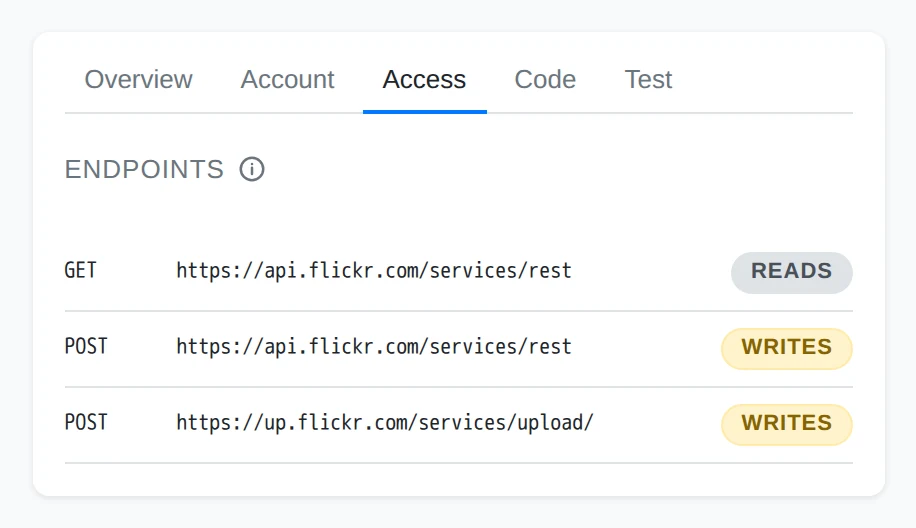
Read it before you publish. A send service needs writes, but only the ones it actually uses: a call you do not recognize here will be granted, so delete it from the conversation before publishing rather than after.
Inspect the Code
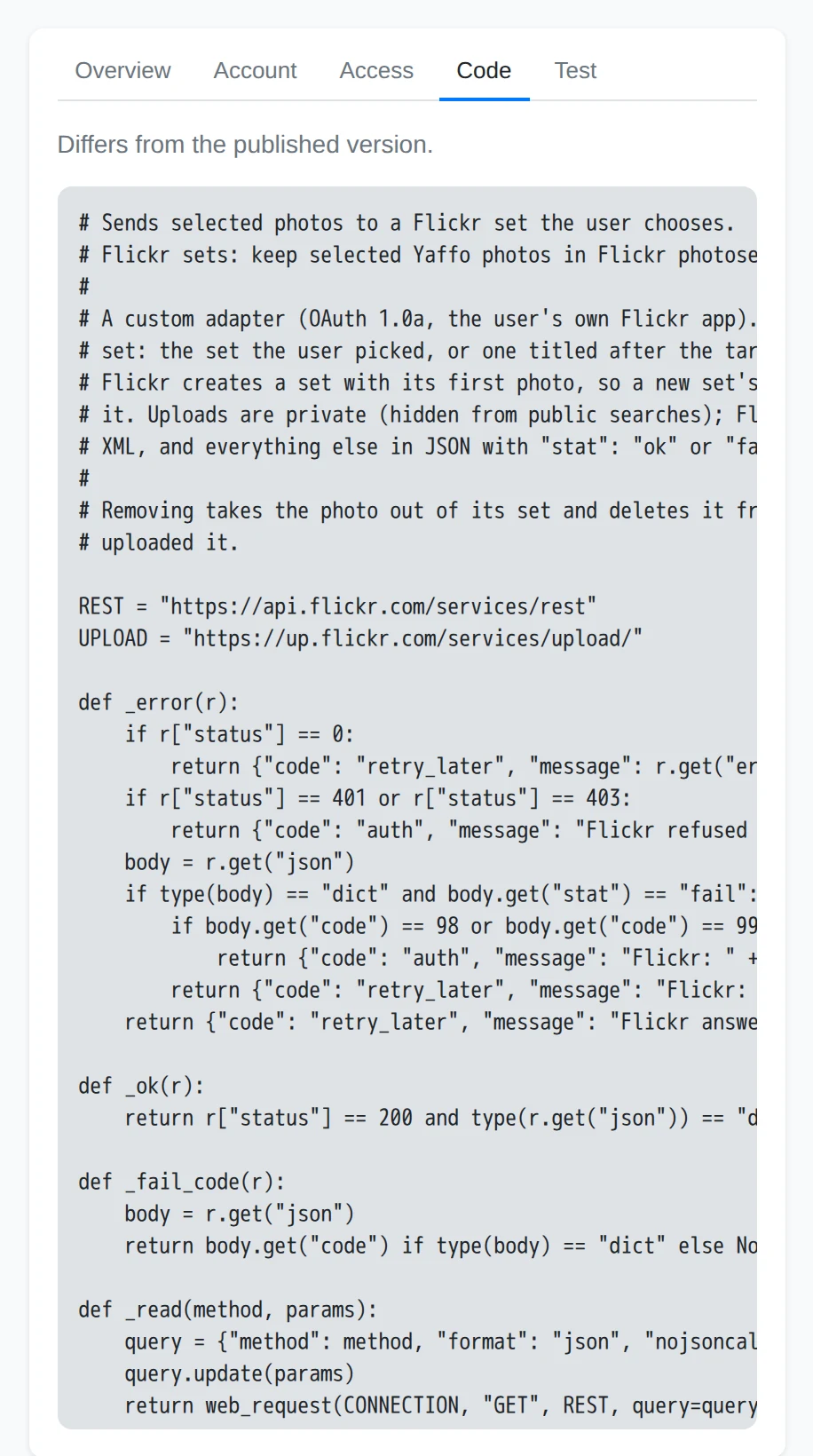
The Code tab is the draft itself. You do not have to read it, but it answers questions the summary cannot, and after the first publish a line above it reads Differs from the published version whenever the draft has moved on — that is the comparison that tells you a publish is pending.
Test the Draft
The Test tab runs the draft once against the test account. Fill in any options first, then click Test. Reads are live: the service's real answers come back, which is what makes the test worth running. Writes are recorded and never sent — the test does not upload, change, or delete anything.
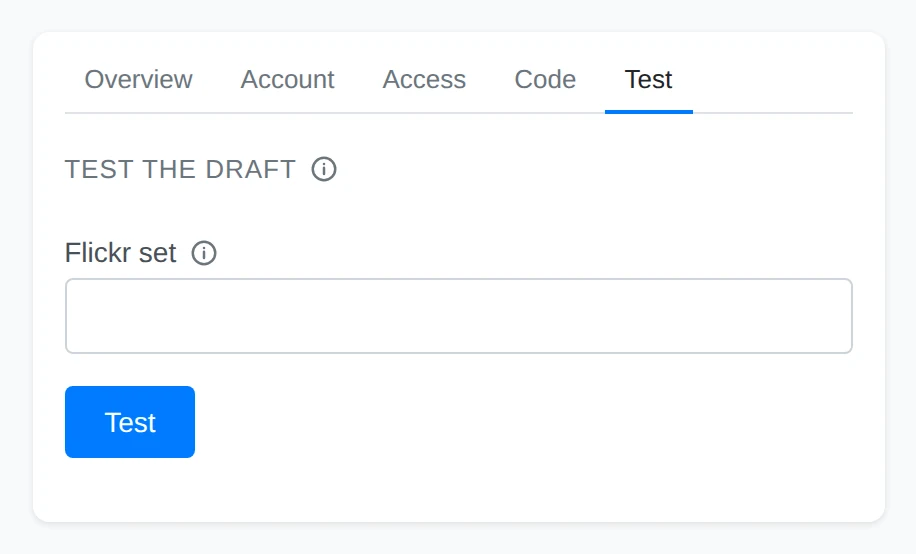
For an option that names something at the far end, such as a set or an album, leave the field empty for the first run to list the choices the account has, then test again with one id from the results.
Read the result, then describe any problem to the builder in the conversation. The builder sees the result with your next message, so you do not need to retype it. Repeat until the draft behaves as you expect.
Publish
Publish appears in the header once the draft passes its check and differs from what is published. It opens a review headed Publish this service? that lists the endpoints publication will grant, each marked reads or changes things.
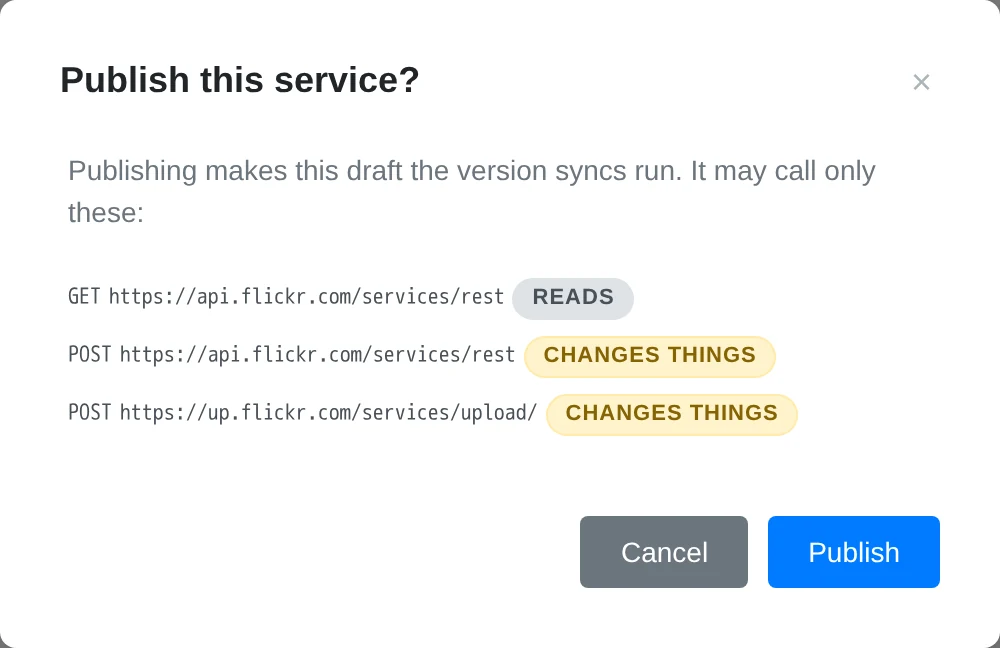
Approve it to make the draft the version syncs run.
Create a Sync With It
Go back to New automation. A published send service is now listed under Send to…, and a published import service under Import from…, beside the services that ship with Yaffo.
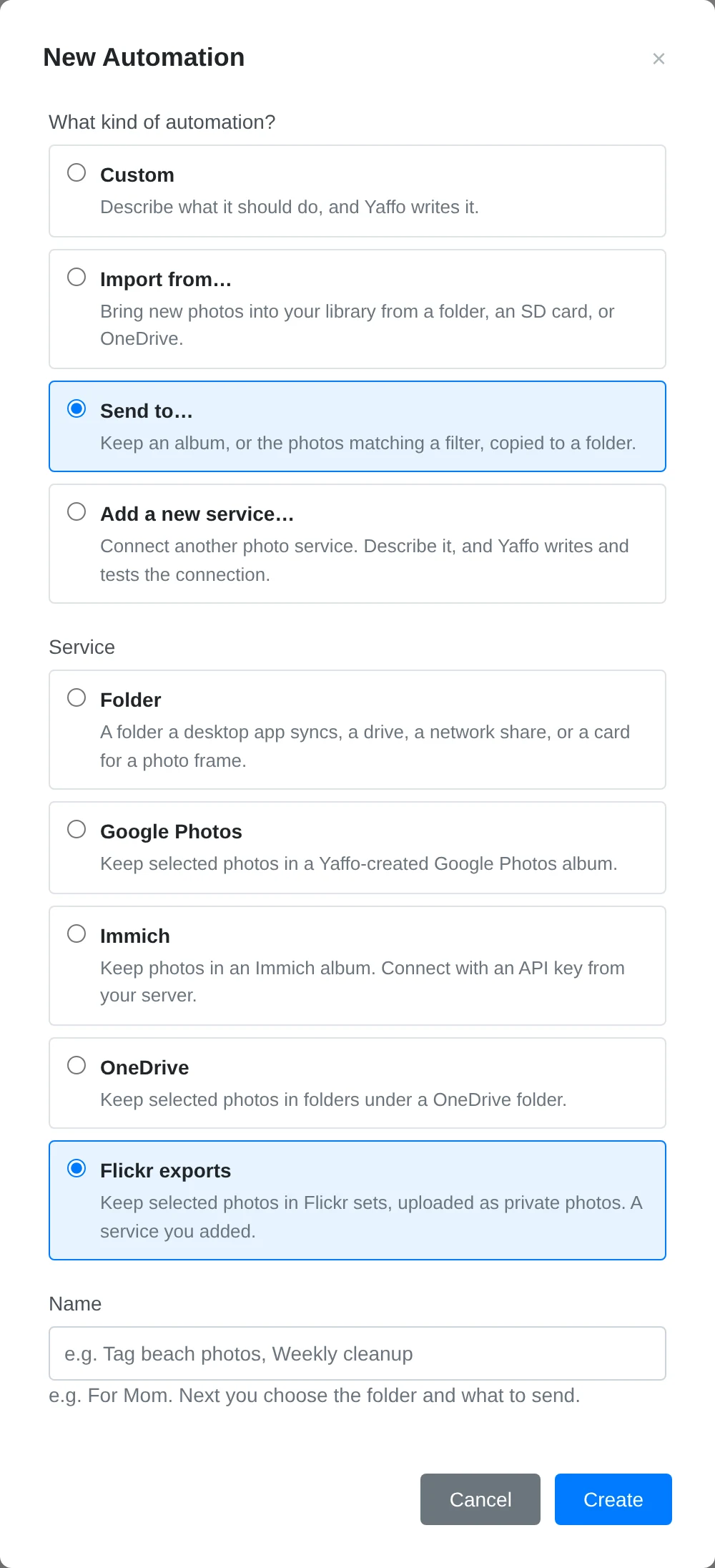
Choose it and complete the account, photo selection, options and setup review described in Automations. Publishing the service alone copies nothing: the service is the connection, and the sync you create from it is what moves photos.
While the Builder Works
While it works the builder may ask to read documentation on a domain it has not seen before. The request appears in the conversation as a card listing the domains; allow the ones you trust, or deny the request and describe the service from what you already know. A denied domain is not asked about again. It may also ask to make live read-only calls to the test account — allowing that lets it check its own guesses against real answers while it writes; see Revoke under Add App Credentials and a Test Account.
Draft and Published
A service keeps two versions side by side. The published version is what syncs run. The draft is what you and the builder are editing. Existing syncs keep running the published version while you work on the draft, which is why a draft can be in pieces, or fail its check, without breaking them.
The tabs inspect the draft. Each is a separate page load, so reload or click the tab again after the builder answers to see the new state.
A service stays in the Services section of the Automations panel, drafts included, with a Draft chip until it is published. Select it there to carry on editing.
Update or Remove the Service
Regenerate appears in the header when a published service no longer passes the current version's checks — after an app upgrade, usually — and the page says so above the tabs. It asks the builder to rebuild the service, keeping what it does and its direction, and to fix the problems listed. Syncs using the service are paused until it passes again.
Delete removes the service and its stored app credentials. It is unavailable while a sync still uses the service: delete that sync first, then delete the service.
When Something Does Not Work
The Chat Will Not Send
A notification naming a provider means no key is saved for the active model. Add it in Settings → AI Generation and send the message again — nothing was stored, so the draft is where you left it. A message that says the builder is already working means a run is still open: wait for it, or cancel it from the conversation, then send again.
There Is No Publish Button
Publish appears only when the draft passes its static check and differs from what is published. A warning above the tabs lists what failed; the draft was still saved, so describe the problem in the chat and let the builder fix it in place. On a service you have already published, a draft that changes the direction is refused — syncs depend on it — so keep the direction and change only the calls and options.
Delete Is Unavailable
Delete is greyed out while a sync uses the service, and the page says so if you get past it: A sync still uses this service. Delete that sync first. Delete the sync under Syncs in the Automations panel, then delete the service. To keep the service but stop using it, disable the sync instead.