Importing Photos
Open Library → Automations to create a sync. This walkthrough takes you through setup, preview, and the first run.
Set Up the Sync
Create an Import Sync
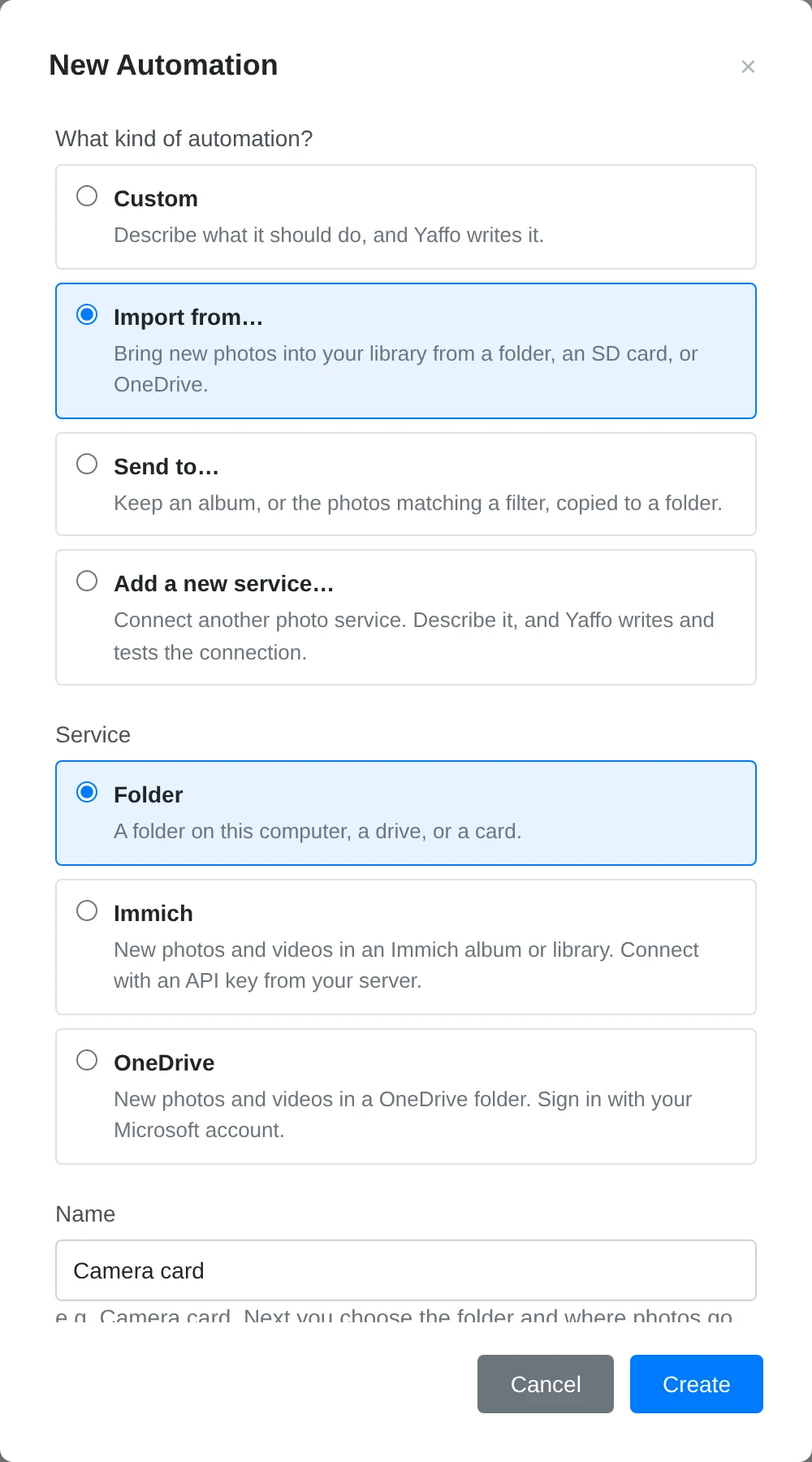
Choose New automation → Import from…, select a service, and name the sync. The built-in choices are Folder, OneDrive, Immich, and Paired device. Published custom import services appear here too.
For a photo service, complete Account first. OneDrive opens a browser sign-in; Immich asks for your server address and API key. An account already used by another sync can be reused.
Choose What to Import
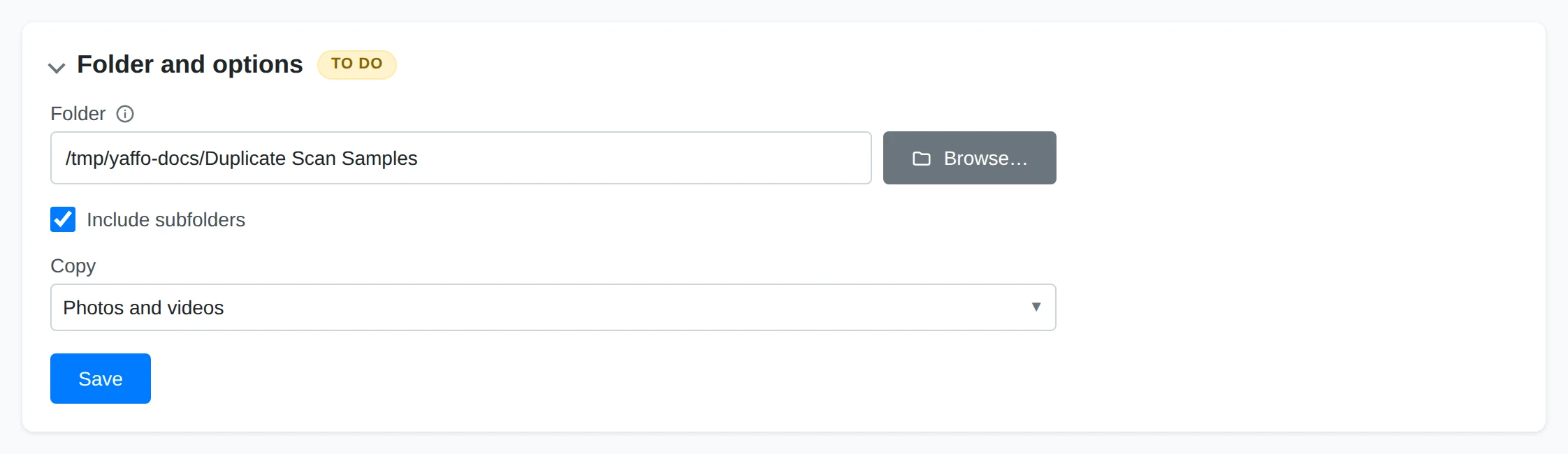
Open Folder and options and choose what to import. For Folder, choose the source folder or card and whether to include subfolders, photos, videos, or both. A service's folder or album picker lists choices from your account.
Choose Where to Put Them
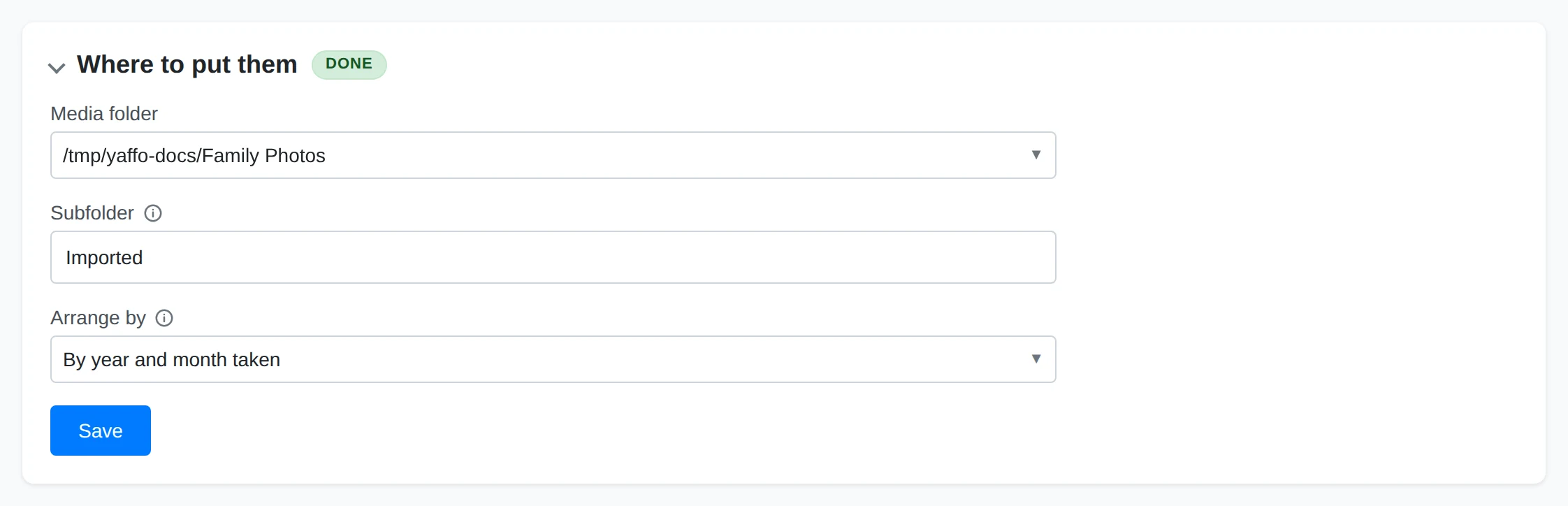
In Where to put them, select a configured media directory and a subfolder for the copies. Choose whether to keep the source's folder structure, arrange files by capture year or year and month, or put them all in one folder.
Preview and Run the Import
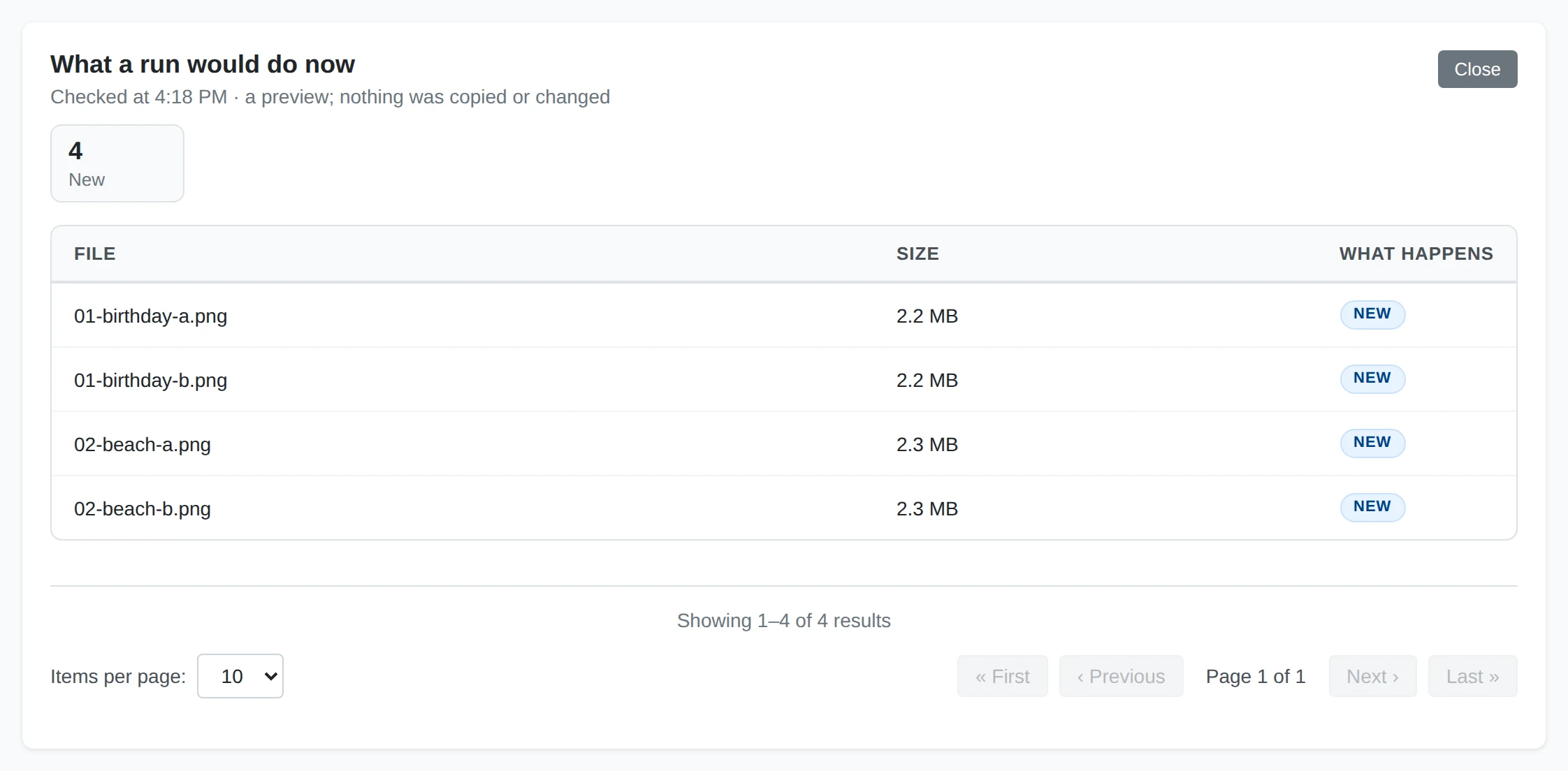
Use Test to preview the import, then turn the sync on. Review the account, source, and destination when Yaffo asks. Use Run now to start immediately.
What Happens to the Files
To index a folder in place, add it as a media directory in Settings. An import sync copies files into the destination you chose and indexes those copies. It leaves the source files alone. Photos already in your library are linked rather than copied again, and deleting a file at the source keeps its imported copy in Yaffo. Changing the import layout affects new imports; existing files stay where they were placed.
Large imports can continue across runs. Run history reports progress, and Items shows which files were imported, already present, or failed. Indexing may still be running while the files arrive; check background jobs if a new copy has not appeared in the gallery yet. A disconnected card or drive leaves the sync waiting until it is available again.
Import From a Paired Device
First pair the two Yaffo installations on Sharing. On the other device, share the folder or album you want this device to import. Pairing alone does not grant access to any photos.
Create an Import from… sync with Paired device, then:
- In Device and options, choose the device and one of its shared folders or albums. The other device needs to be reachable to list its shares.
- In What to import, choose Everything in the share or a filtered subset. The filter choices come from the other device's people, labels, and dates. Matching photos added to the share later are included too.
- Choose the local destination in Where to put them, test, and turn the sync on after reviewing the device, share, selected photos, and allowed connection paths.
The device can be reached on your network or over a direct connection. Optional relay use has a data limit per run; with relay use off, the sync waits when no direct path is available. It also reacts when the device comes online. Files already in your library are not transferred again, and photos deleted or no longer shared on the other device stay in your library.
Schedule and Monitor the Sync
New syncs start with a nightly schedule. Open When to adjust it; with no triggers, the sync runs only when you start it manually. Paired-device imports also react when their device comes online.
Check Run history for progress. Expand Items to search photos, filter statuses, and read failure reasons. Fix the problem before using Retry failed. If an account needs sign-in again, reconnecting also fixes other syncs using the same account. Turn the sync off to pause automatic runs. Changes to setup or access can require another review before turning it on again.
Related
- Automations — triggers, run history, and custom rules.
- Creating a Photo Service — add a service outside the built-in choices.
- Exporting Photos — send selected library photos elsewhere.