Custom Pages
Custom pages turn library data into your own dashboards, trip stories, maps, galleries, and other presentations. Each page appears on the Pages strip below the main navigation.
Create a Page
Click + New page on the Pages strip. Yaffo creates an Untitled Page immediately and opens its design view.
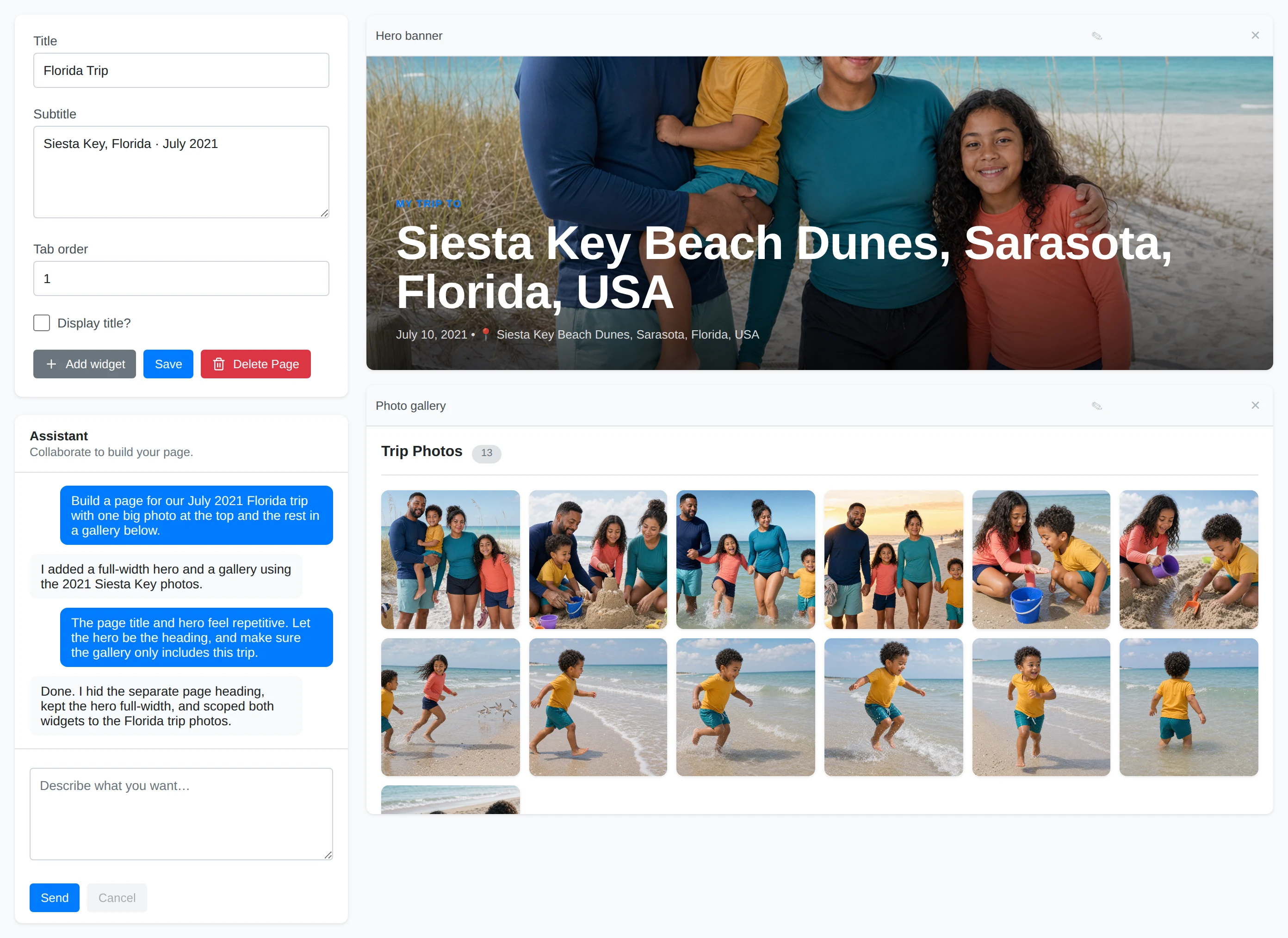
The left editor contains:
- Title and optional Subtitle fields;
- Tab order, which sets the page's position among other custom-page tabs;
- Display title?, which controls whether presentation mode adds a separate page heading above the widgets;
- Add widget, Save, and Delete Page actions;
- the Assistant conversation.
The canvas on the right is a responsive grid laid out on 12 columns. It reflows to six columns and then to a single full-width column as the canvas narrows, but Save always commits the 12-column layout. Click Save to commit page settings and manual layout changes. A page with no saved widgets keeps opening in design mode; a page with widgets opens in presentation mode.
Work with Widgets
A widget is an independently rendered block with its own title, data request, layout, and presentation code. Widgets run in isolated frames. Yaffo validates and resolves their library queries on the server, so generated widget code does not receive direct database or network access.
Click Add widget to add a blank widget manually. Use its pencil to rename it, drag its header to move it, drag its resize handle to change its size, or click × to remove it after confirming. The header also carries ↑, ↓, −, and + buttons that move a widget up or down the page and make it shorter or taller. They appear when you hover a widget, and stay visible wherever dragging is unavailable — on a touch screen, or on a canvas narrow enough to be a single column. The blank widget has no generated content; use the Assistant when you want Yaffo to design a functional widget.
The Assistant can use or adapt these built-in widget patterns:
- Hero banner — a full-width focal image and heading;
- Photo grid — a simple responsive thumbnail grid;
- Photo gallery — a polished gallery with captions and a lightbox;
- Library stats — photo, people, and year summary tiles;
- Featured photo — one full-bleed image with a caption;
- Filterable gallery — a gallery with its own year filter;
- People — person selectors and their associated photos;
- Photo map — an interactive map of geotagged photos;
- Filter controls and Linked gallery — a connected pair where filters update one or more galleries;
- Photo picker and Photo spotlight — a connected selector and featured photo pair;
- Folder picker and Folder gallery — a connected folder browser and gallery pair.
This catalog gives the Assistant reliable starting points; it can combine, filter, restyle, or create other widget designs for your request.
Generate and Refine a Page
AI generation requires a configured provider and API key under Settings → AI Generation.
- Describe the page or widget in the Assistant box and click Send.
- Yaffo creates a durable working version and starts generation in the background.
- While generation is running, the grid, Add widget, and Send controls are locked. The elapsed timer and conversation show progress. Cancel discards the working version after confirmation.
- When generation succeeds, the grid unlocks so you can review, move, resize, rename, or request follow-up changes.
- Click Save to publish the ready version.
Closing or reloading the browser does not discard an active generation because the working version is stored by Yaffo. If generation fails, the draft becomes editable for a retry or follow-up; it is not published automatically.
Present and Edit a Page
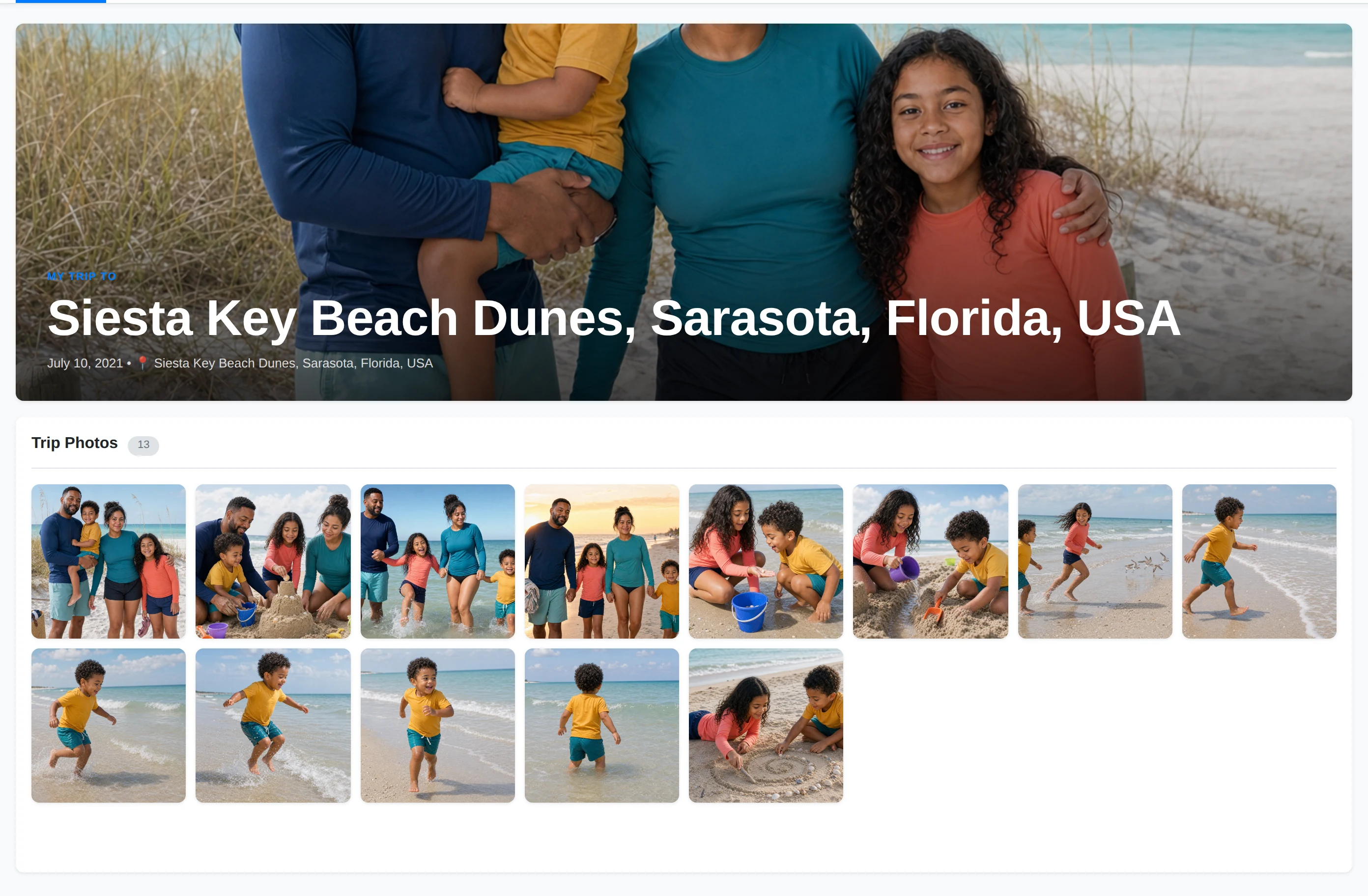
Presentation mode shows the published version in a static grid without editing controls. If Display title? is enabled, the page title and subtitle appear above the grid. A widget can also provide its own heading, as the seeded Florida Trip page does.
Open a page from the Pages strip. When its tab is active in presentation mode, click the pencil beside the tab to return to design mode.
Manual changes to the published page remain in the browser until Save. AI changes remain in a separate working version until Save publishes them. This keeps a partially generated draft from replacing the current presentation.
Delete a Page
Open design mode and click Delete Page. Yaffo asks for confirmation and names the page that will be removed. Deleting a page removes its versions, widgets, and conversation, then removes its tab from the Pages strip.
For how custom pages fit alongside filters, favorites, albums, and tags, see Organizing Photos. To restyle the whole app, including custom pages and widgets, see Themes.