Albums
An album is a collection you curate by hand. Add a photo once and it stays in that album until you remove it; changing a filter does not change membership. The same photo can belong to several albums. Albums can include videos too.
Open Albums from the main menu. Creating an album, changing its order, and deleting it never moves or deletes the original media files.
Find an Album
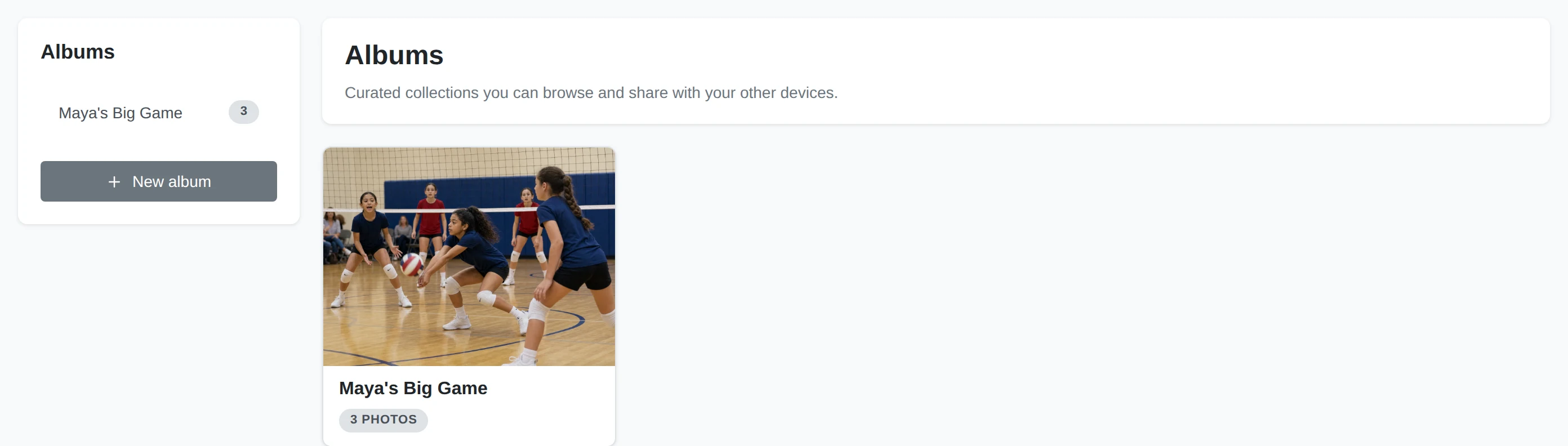
Album List
Choose an album in the sidebar, or use New album. On a narrow screen, open the Albums panel from the navigation bar.
Album Tiles
Each tile shows the cover, name, and member count. Shared marks an album that has been shared with a paired device. Click a tile to open it.
Create and Fill an Album
This example makes a small album from a beach trip. Choose any photos from your own library; you can add more later.
Name the Album
Choose New album, enter a name and an optional description, then choose Create. Use a name different from your existing albums.
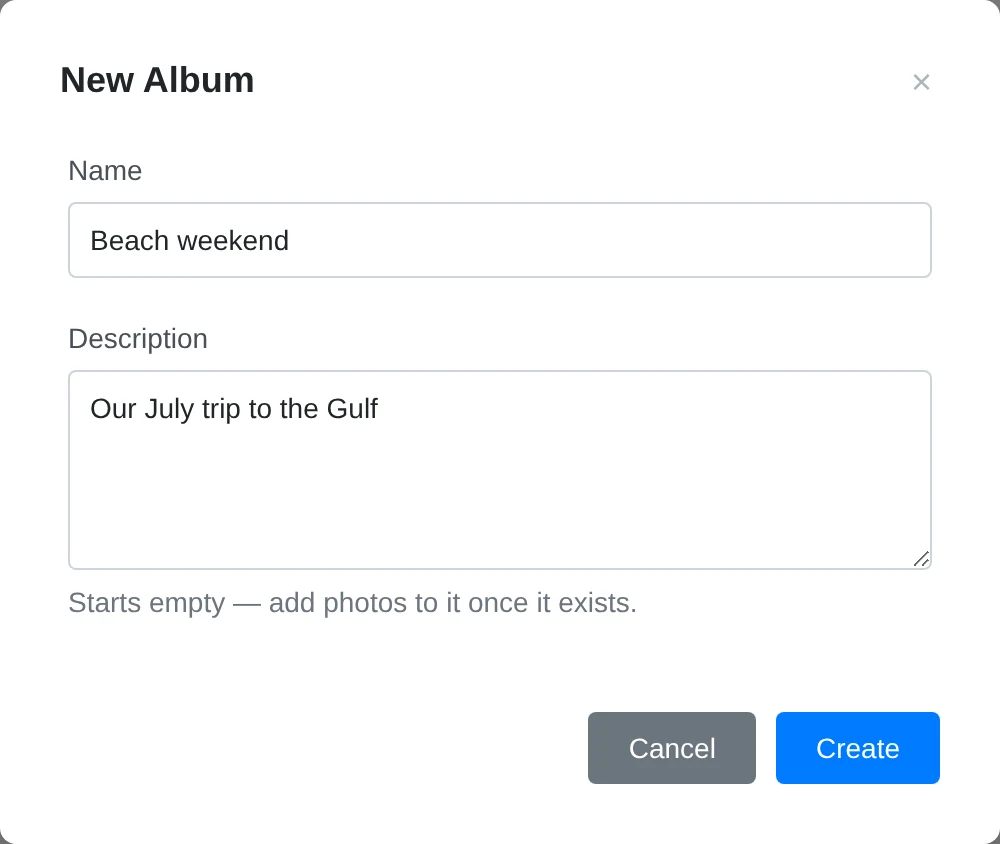
Open Add Photos
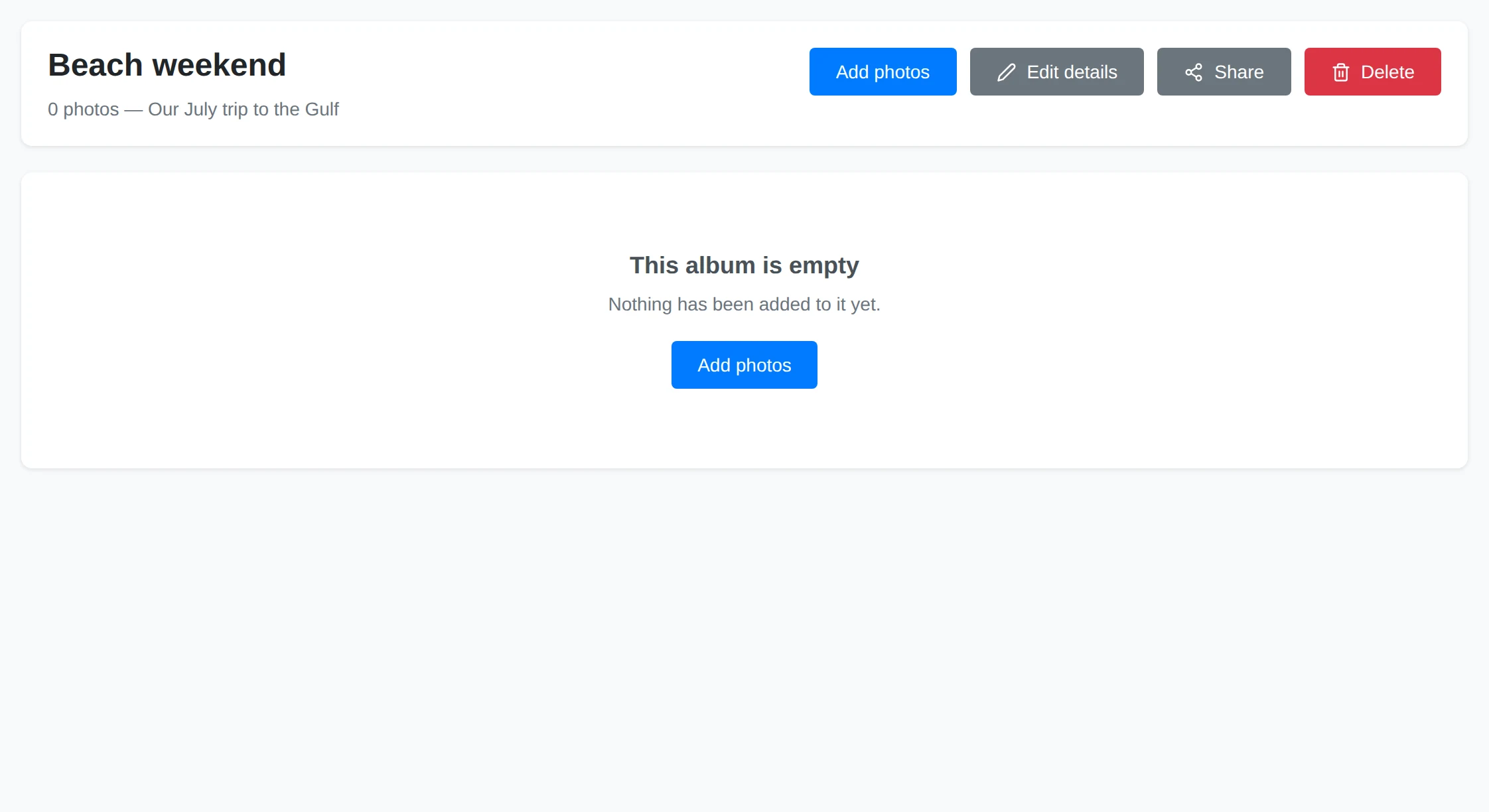
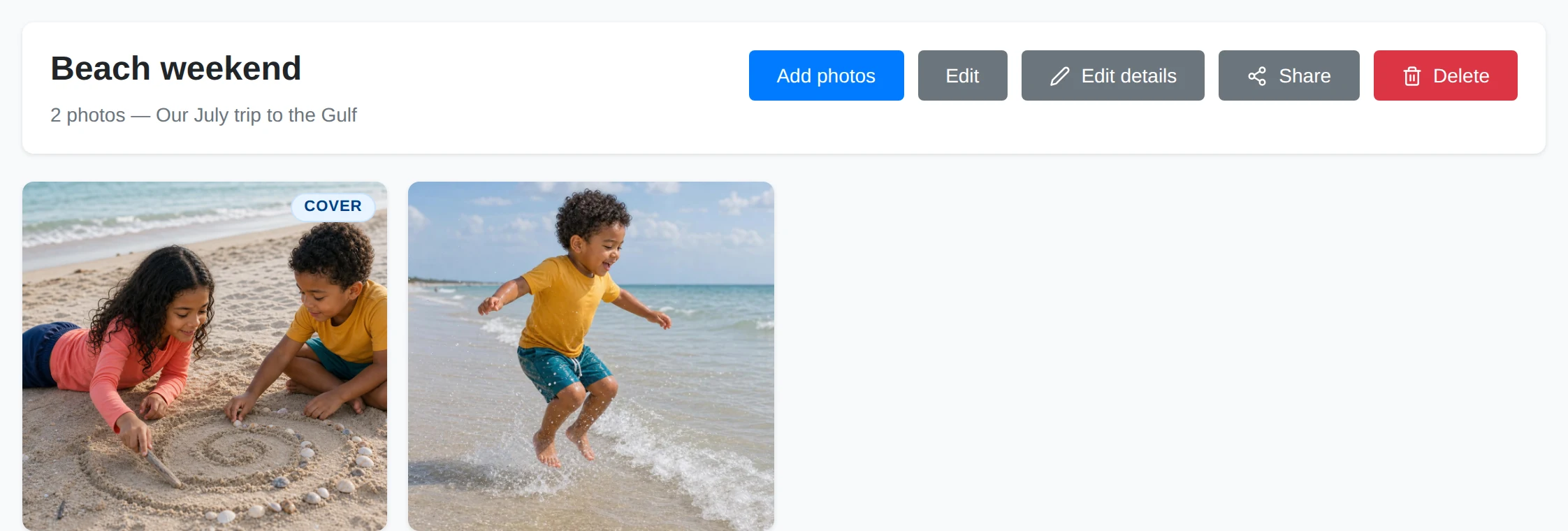
The new album starts empty. Choose Add photos to open your library in selection mode.
Pick the Photos
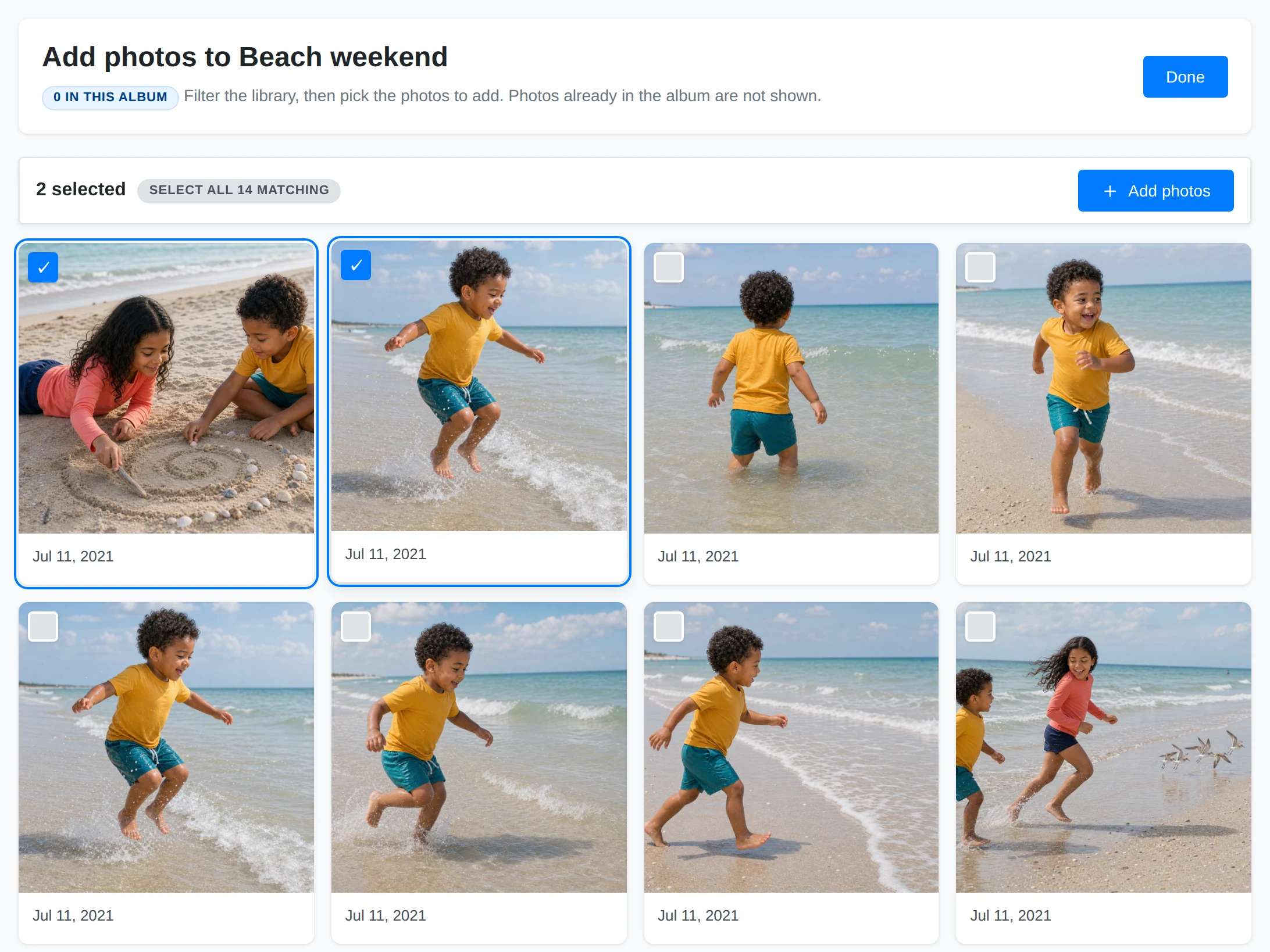
Use the filters to find the trip, then click the photos you want. The selection bar counts your choices. Choose Add photos to add them.
Return to the Album
Adding keeps you on the selection screen. The confirmation and album count show what was added, and those photos disappear from the available results. Choose Done to return to your album.
Add Every Matching Photo
On Add photos, apply the filters first, then choose Select all N matching. This selects every match, including photos on other pages. Untick anything you want to exclude and choose Add photos.
Photos already in the album are hidden from this screen and cannot be added twice. Nothing left to add means every photo matching the current filters is already a member. Change or clear the filters to find more.
See Browsing, Filtering, and Search for the filter controls.
Change the Cover, Order, or Members
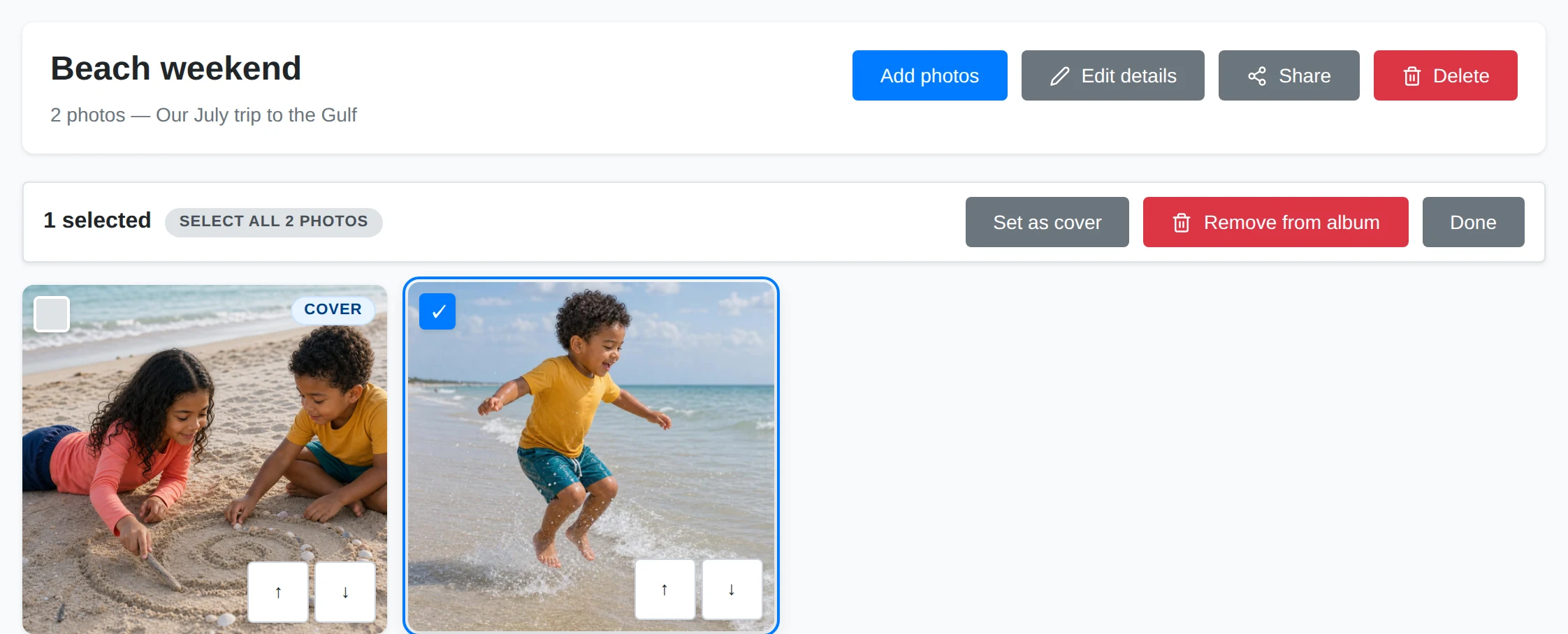
Open an album and choose Edit. Selecting photos in edit mode changes the selection, rather than opening the photo viewer.
Member Selection
Choose Set as cover with exactly one photo selected. Remove from album removes the selected memberships after confirmation. Choose Done to leave edit mode.
Album Cover
The Cover badge identifies the current cover. Without a pinned cover, the album uses its first member. Removing the cover does not delete the photo.
Member Grid
Drag a member to change its position. The order is saved for this album. Where shown, Move earlier and Move later provide an alternative to dragging.
Removing a photo from an album leaves it in your library and in any other albums. This is different from deleting a media file.
Edit the Name and Description
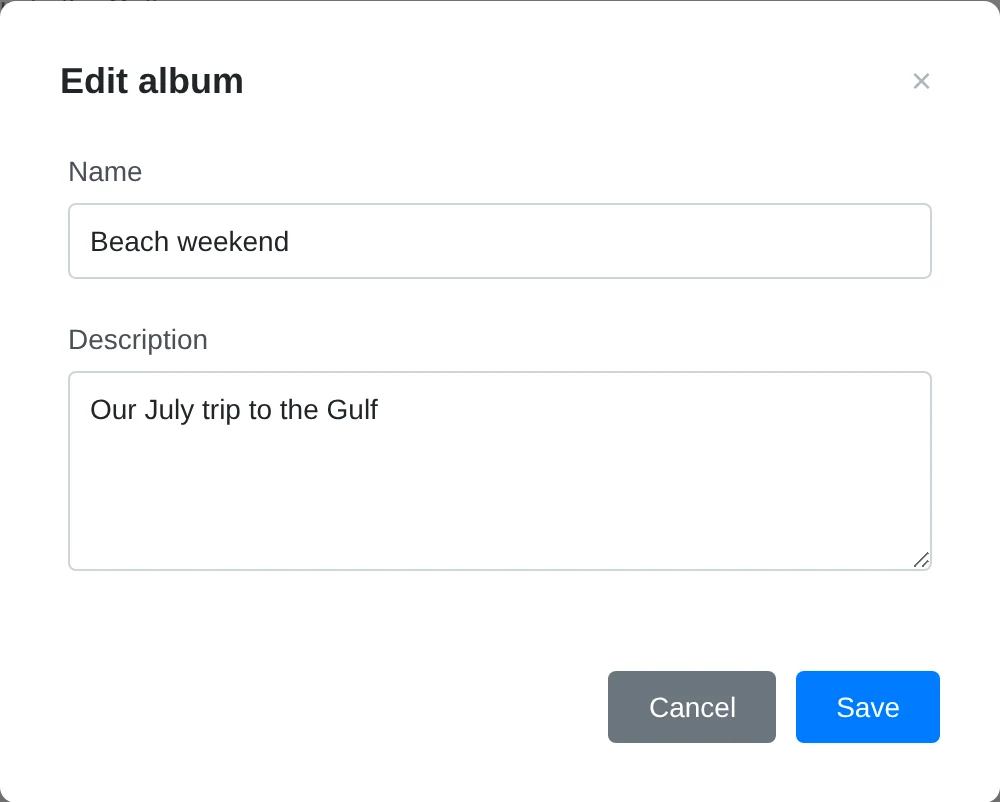
Choose Edit details, change the fields, and choose Save. The name must be present and must not clash with another album's name.
Album Name
The name appears on the overview tile, in the sidebar, and on the album page.
Album Description
Use the optional description to explain the occasion or how you chose the photos. It appears beneath the album heading.
Share an Album
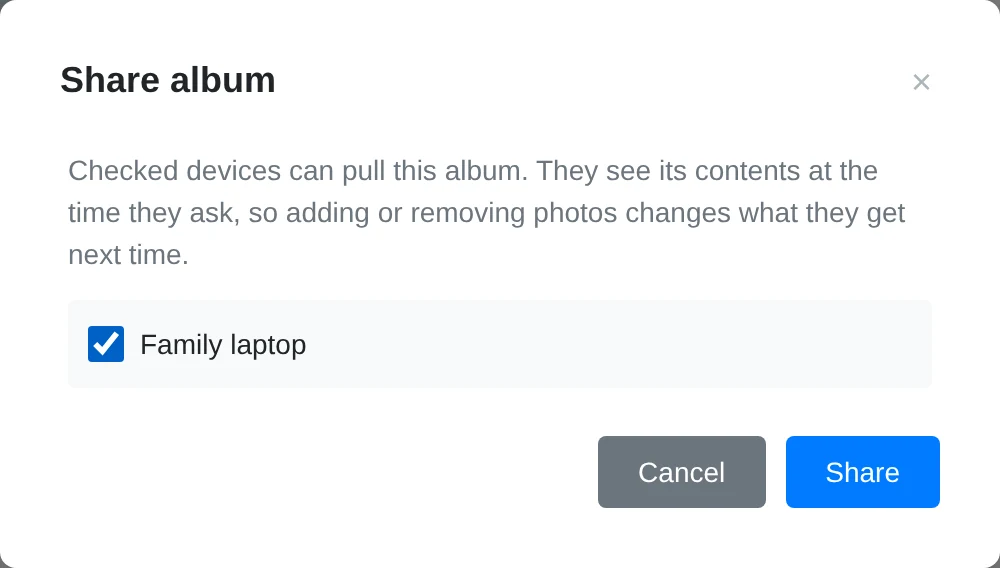
First pair your other Yaffo installation. Then open an album and choose Share.
Paired Devices
Check the devices that should have access and choose Share to save. Uncheck a device and save to revoke its access to this album. If the list is empty, pair a device on the Sharing page first.
Share Access
The receiving device sees the album's current members when it asks. Adding or removing a member changes future listings; already downloaded copies remain on the receiving device.
Sharing an album does not grant access to the rest of its photos' folders. The receiver browses it under Shared With Me and chooses which files to pull. See Receiving Photos for copying files, Sharing Folders and Albums for access, and Pairing Devices for device management.
Delete an Album
Choose Delete on the album page and read the confirmation before accepting. The album and its membership list disappear. The photos and videos themselves remain in the library.
Use filters for a changing search, an album for a hand-picked collection, or a custom page when you want a designed presentation with widgets.