Troubleshooting
This page covers the most common problems and how to narrow them down. Many issues come down to indexing or background jobs, so it is worth checking those first.
Ask Yaffo can run these checks for you: describe the problem, or click Ask Yaffo on the error message or failed job. It reads the logs, jobs, and media folders, explains what it found, and proposes a fix you can approve.
Photos Do Not Appear
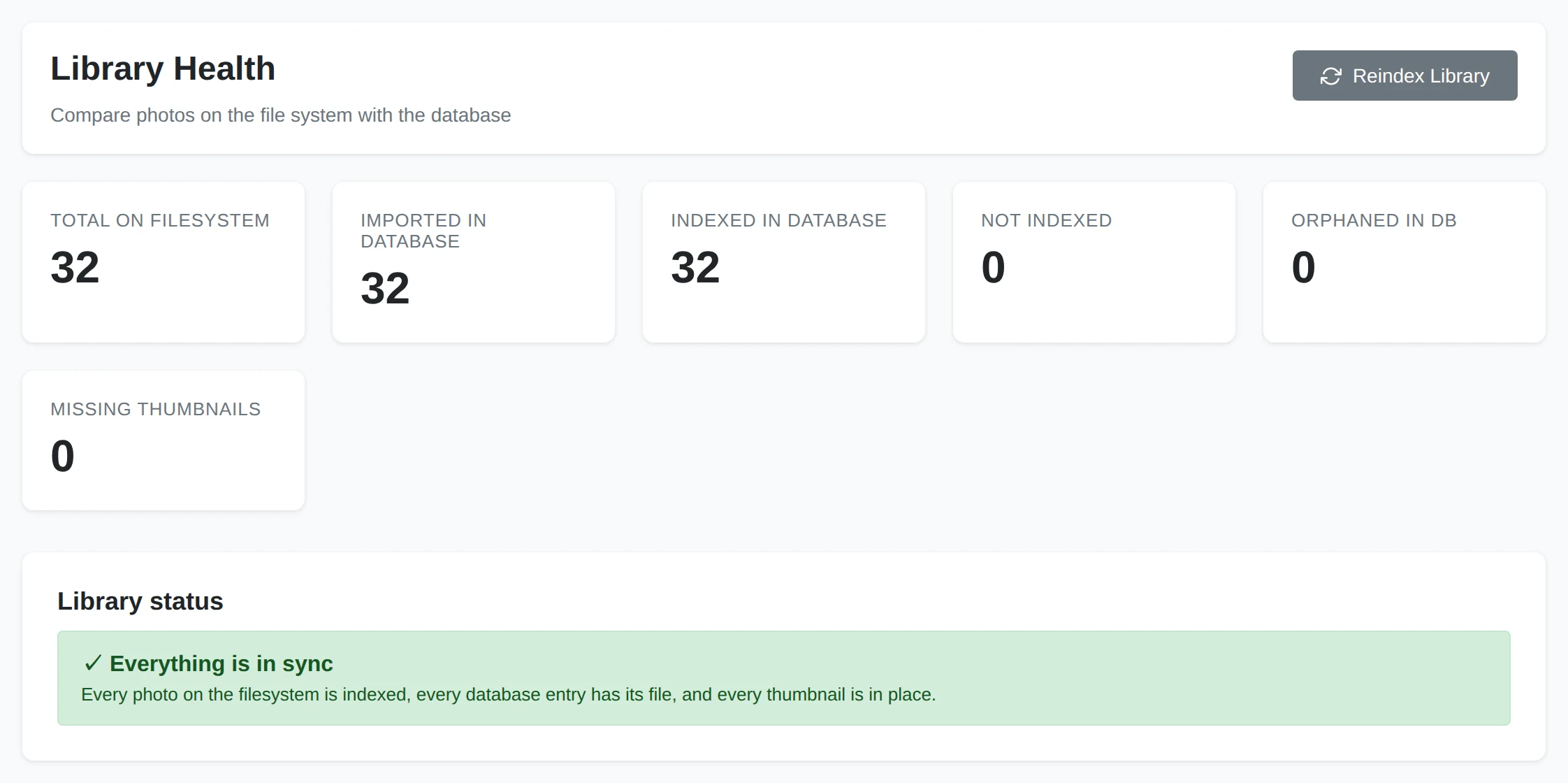
If photos are missing from the library:
- Check your media directories. Open Settings and confirm the folder containing the photos is listed under Media Directories.
- Index the library. New files only show up after indexing. Open Library → Library Health and select Index them on the Photos aren't indexed card, or wait for Yaffo's automatic sync to pick them up.
- Check Library status. Library Health reports how many files are found on disk versus processed, and lists each problem as a card with its fix. A large Not Indexed count means new files are waiting to be indexed.
- Confirm the file type is supported. Unusual or non-media files are skipped.
- Check folder permissions. Yaffo can only index files it is allowed to read.
See Indexing & Library Management. If your library is on another drive, follow External Drive Not Showing.
Jobs Are Stuck or Slow
Indexing, classification, and face detection run as background jobs.
- Give large libraries time. A first index of a big library processes every file and can take a while. Progress is shown as it works.
- Make sure the background worker is running. Yaffo processes jobs with a background task host. If jobs never start or never finish, the host may not be running — restart the application.
- Cancel and retry. A job that appears wedged can be cancelled and started again.
Faces, Labels, or Duplicates Look Wrong
These features are powered by machine learning, so they are helpful but not perfect. Some mistakes are expected, and each has a correction path:
- Wrong or missing faces. Review unassigned faces, correct bad assignments from a person's page, and ignore low-quality faces. See Assigning Faces. If face processing never finishes or assigned faces reappear, see Faces Stuck After Assigning.
- Wrong or missing labels. Treat labels as search hints. Adjust the label vocabulary and re-classify if needed. See Labels and Auto-Classification.
- Duplicate matches you disagree with. Always review a duplicate group before removing anything. See Finding Duplicates.
Re-running the relevant step, or lowering a similarity threshold, often improves results as your library grows.
If photos appear in the wrong year, follow Photos Show the Wrong Year.
Map or Location Suggestions Do Not Work
- Check for GPS metadata. Only photos with GPS coordinates appear on the map. Many scans and screenshots have none.
- Fill in missing coordinates. The Geotag from neighbors automation can copy GPS from nearby photos taken around the same time.
- Location names need a lookup. Names come from nearby already-named photos or an online map lookup, which requires a network connection. See Locations & Map.
AI Features Do Not Work
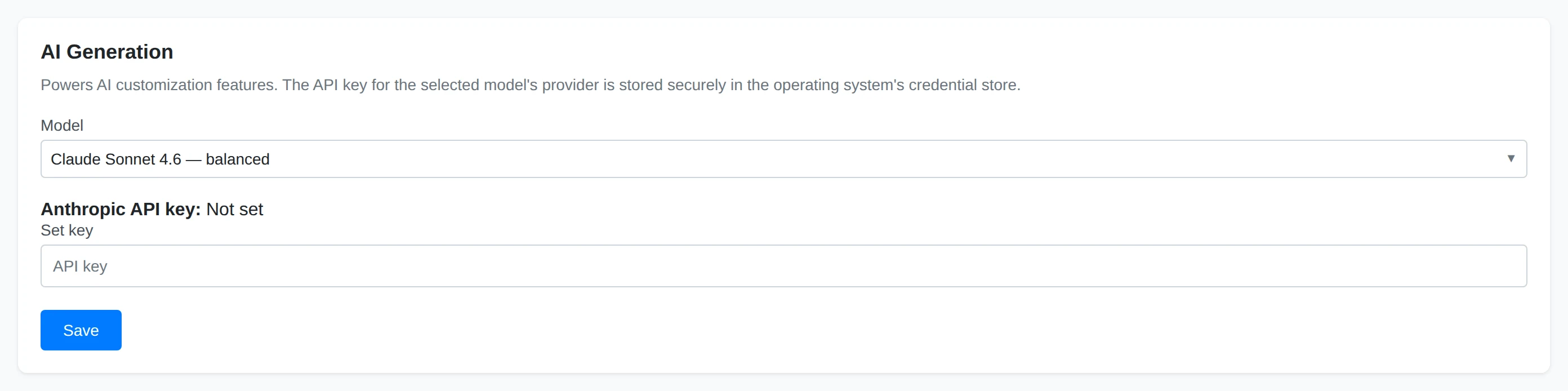
The page builder, theme designer, and custom automations need AI generation to be configured.
- Set a model and API key. In Settings → AI Generation, choose a model. The provider's API key is stored in your operating system's credential store. Without a valid key, generation cannot run.
- Check your network. Generation calls the model provider over the internet; an offline machine or blocked connection will fail.
- Read the error. Provider errors (an invalid key, a rate limit, or an unavailable model) are surfaced in the app — the message usually names the cause.
See the Settings Reference for where these options live.