Receiving Photos
First pair the devices and have the sender grant access. Receiving makes local copies; it does not move or delete the sender's originals.
Pull Copies to the Other Device
On the receiving installation, set a download directory before selecting files. Then open a share from Shared With Me.
Choose Where Copies Go
Open Sharing and set Download directory under Downloaded copies. Use Browse… or enter a local folder, then choose Save. Copies are stored under a device folder inside this directory.

Select the Shared Photos
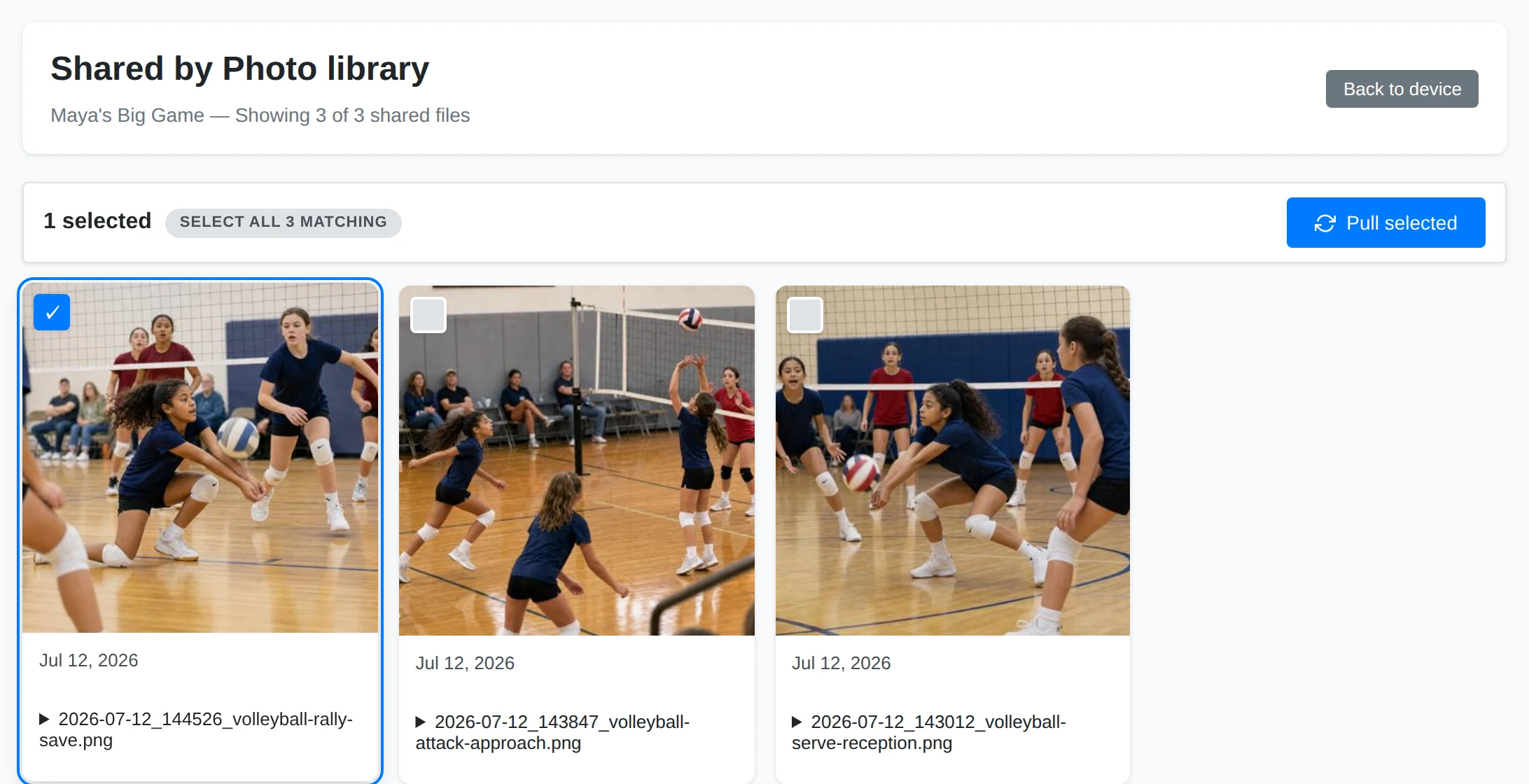
Choose View beside the shared folder or album. Click the photos you want, or choose Select all N matching. That selects all matches across pages; untick any exceptions. Choose Pull selected to start.
Check the Transfer
The pull runs in the background. The Transfers panel shows its state, progress, and connection path. Wait for Completed before relying on the copy. You can leave the gallery and return to the device page to check progress.
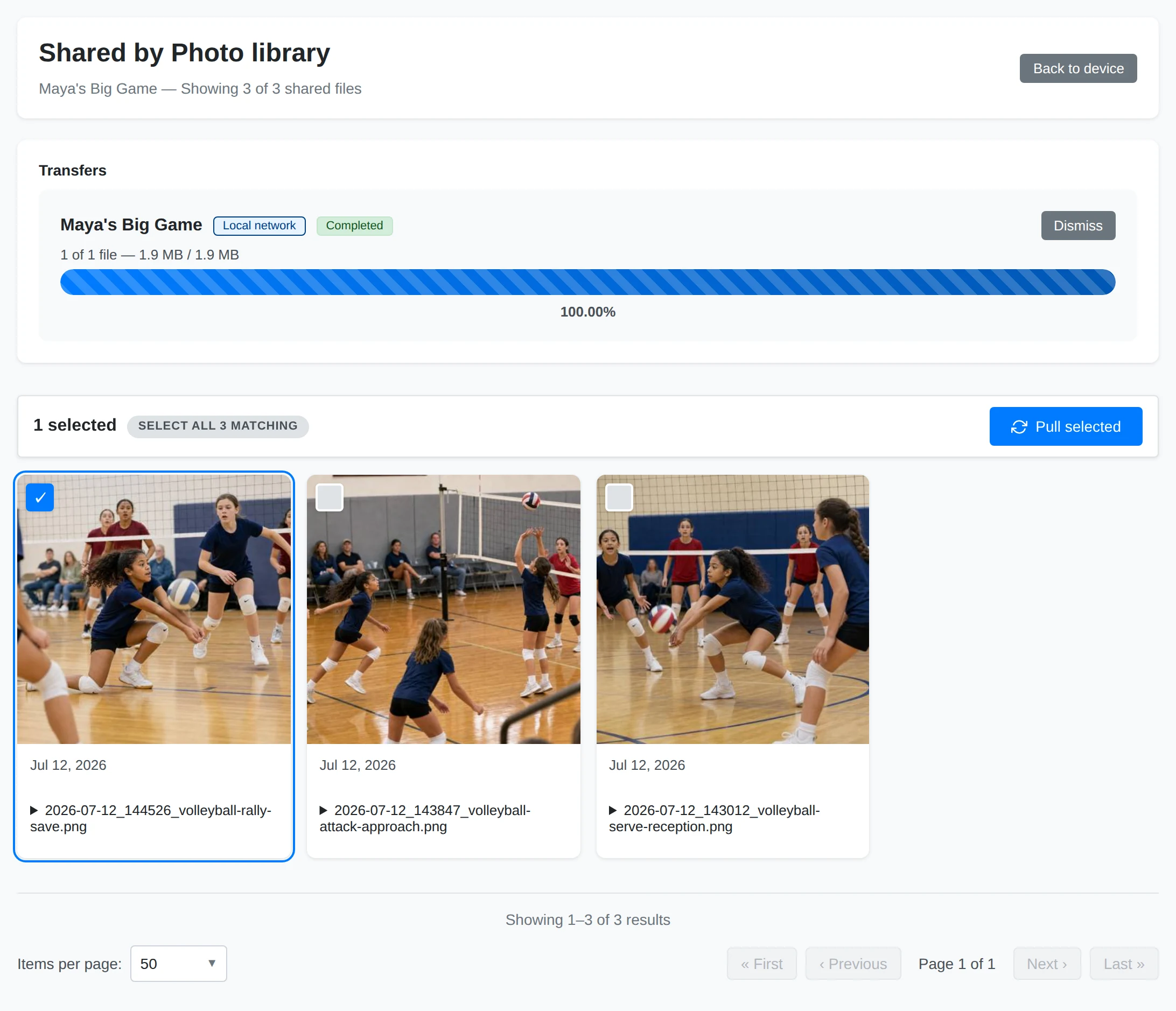
Without a saved download directory, the gallery displays a notice and a Set download directory link instead of selection controls.
Find and Index the Copies
Open the saved download directory in your computer's file manager. Inside it, look for the sending device's name, then the shared folder or album name. Completed means the files have been saved there; a manual pull does not automatically add them to the receiving installation's library.
To browse the copies in Yaffo:
- Open Settings and add the download folder under Media Directories. If it is already inside a configured media directory, use that existing directory.
- Open Library → Library Health and select Index them on the Photos aren't indexed card when the new files appear.
- Wait for indexing to finish, then open Home to browse the local copies.
See Indexing & Library Management for scan results and indexing progress. To copy and index matching photos automatically on later runs, use a paired-device import sync instead of repeating manual pulls.
Browse a Remote Gallery
Remote Filters
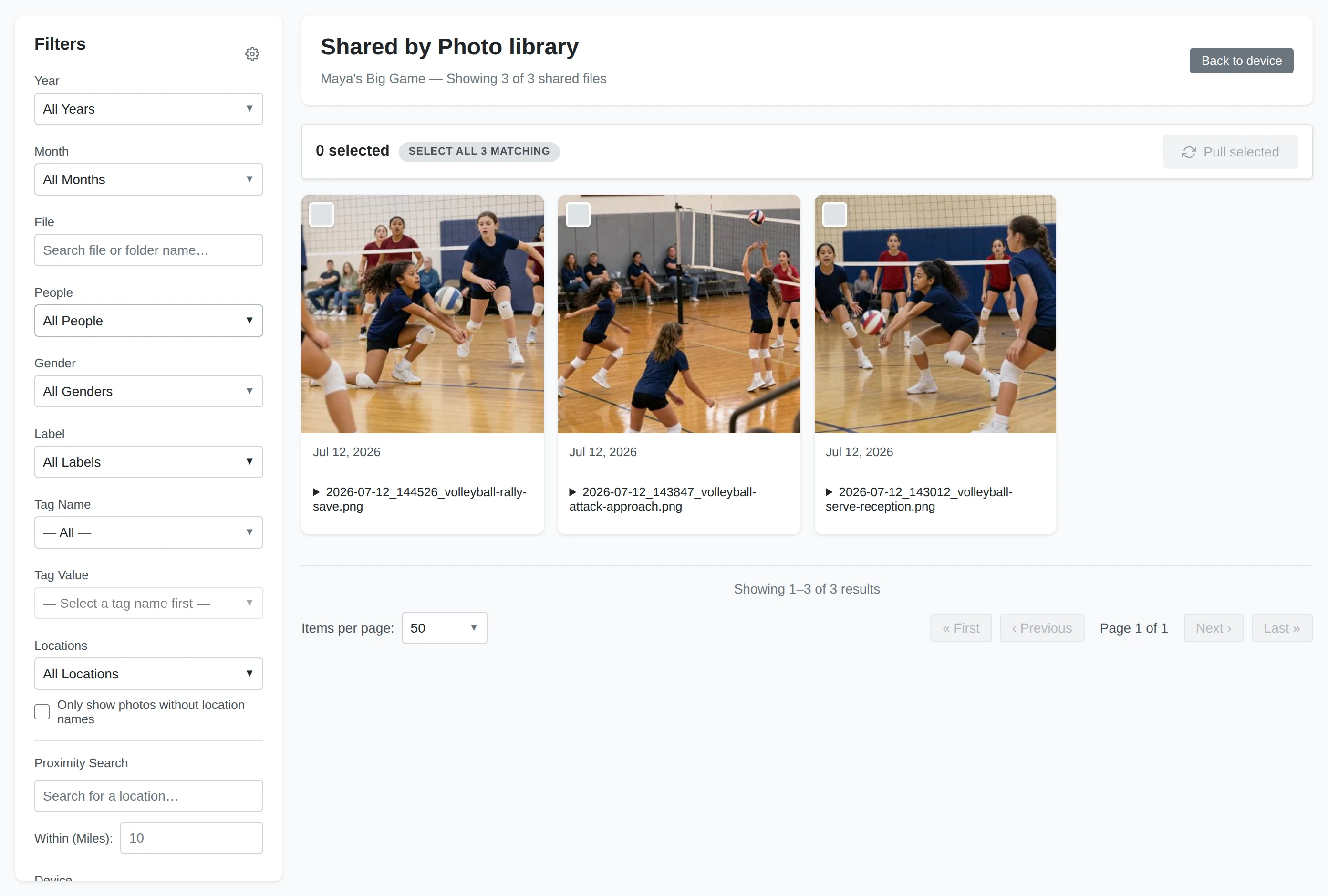
Filter the sender's shared files by the available dates, people, labels, tags, and other library filters. Options come from the shared scope on that device. Choose Apply Filters after changing your choices.
Remote Selection
The count and Pull selected action apply to your current selection. With Select all N matching, the scope includes matching files on other pages.
Remote Photos
Previews come from the other device. Browsing does not download originals into your chosen folder; pulling does. A preview can take a moment to load.
If the device cannot be reached, make sure it is running, check the connection, and try again. If no files appear, check the filters and ask the sender to confirm the grant and that its media directory is available.
Pulling is a copy operation, not a continuing synchronization. Later changes at the sender do not automatically update the copies you already pulled. For scheduled imports from a paired device, see Importing Photos.
See Transfers and Connections for progress, failures, relay limits, and cancellation.